Add the Beacon summary and the Beacon tab to your HubSpot company and deal records. A HubSpot admin does it once, in about two minutes.
Beacon’s HubSpot app brings two cards. HubSpot doesn’t let an app place its own cards, so someone who administers your HubSpot adds them once. After that they appear on every company and deal.
Card
Where it goes
What your team gets
Beacon summary
The top of the right sidebar on every company and deal
Beacon’s read, three key numbers, the check against your plan and the next step
Beacon
A tab of its own on every company and deal
Everything Beacon holds for the customer or deal
Before you start
HubSpot is connected to Beacon. Connect HubSpot sets out each step.
You can install apps and change record layouts in your HubSpot. If you can’t, send this page to whoever can.
Add the Beacon summary
1
Open Beacon's app cards
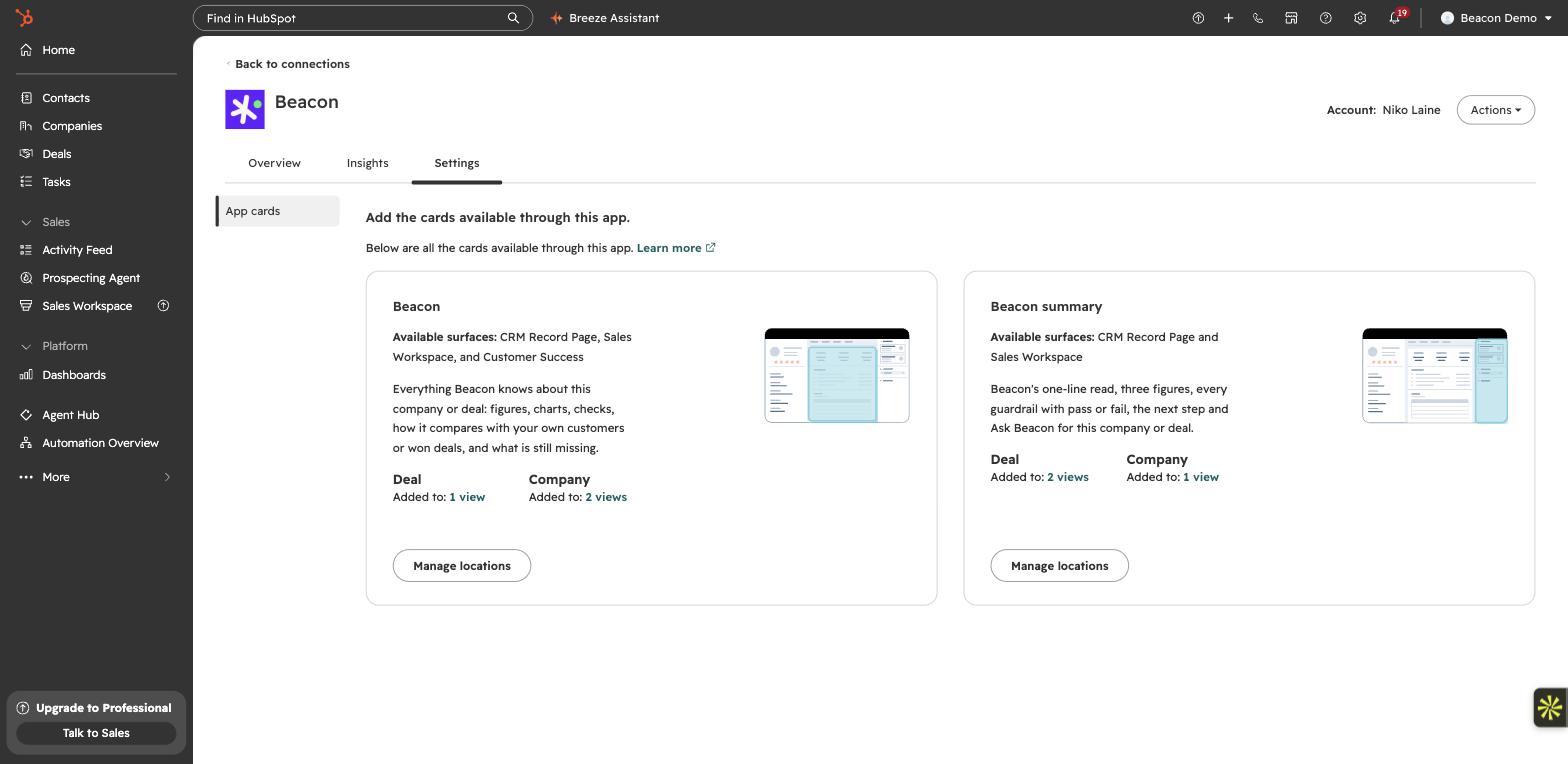
In HubSpot, select the Settings icon in the top bar. Go to Connected apps, open Beacon, select the Settings tab, then App cards.
Beacon's two cards under Connected apps › Beacon › Settings › App cards.
2
Choose where the summary shows
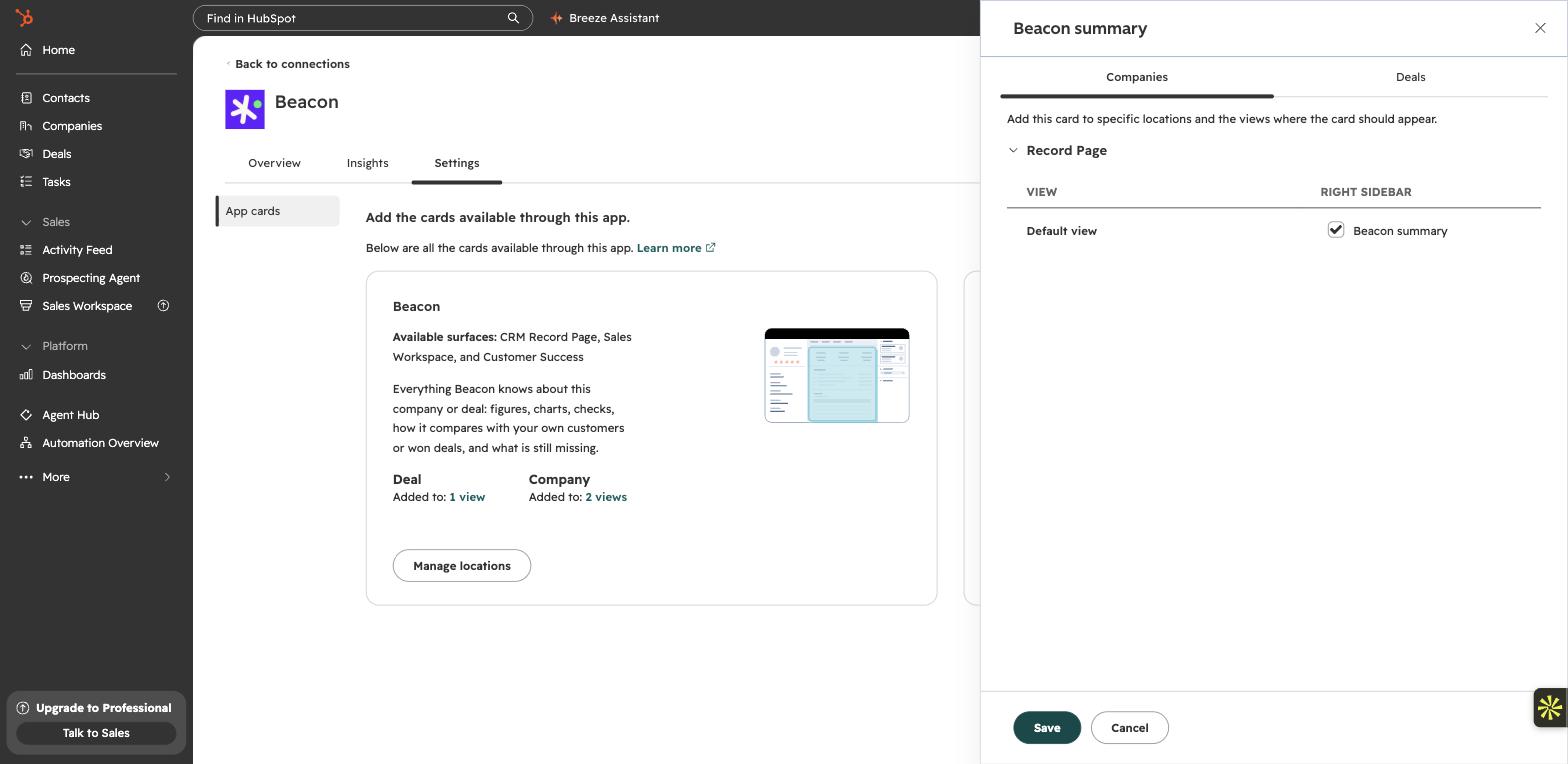
On Beacon summary, select Manage locations. On the Companies tab, under Record Page, tick Beacon summary in the Right sidebar column for each view. Then do the same on the Deals tab.
Manage locations for Beacon summary, Companies tab: Right sidebar ticked for the Default view.
3
Save
Save. The Beacon summary now shows on the right of every company and deal. HubSpot puts it at the bottom of the sidebar, so move it to the top next.
Move the Beacon summary to the top
HubSpot adds a new app card below its own cards, and an app can’t move its own card. Move it to the top once, for everyone. You need the Customize record page layout or Super Admin permission in HubSpot.
1
Open the deal record layout
In HubSpot, select the Settings icon in the top bar. In the left menu, under Data Management, select Objects. Choose Deals in Select an object, then select the Record Customization tab and Default view.
2
Drag Beacon summary to the top
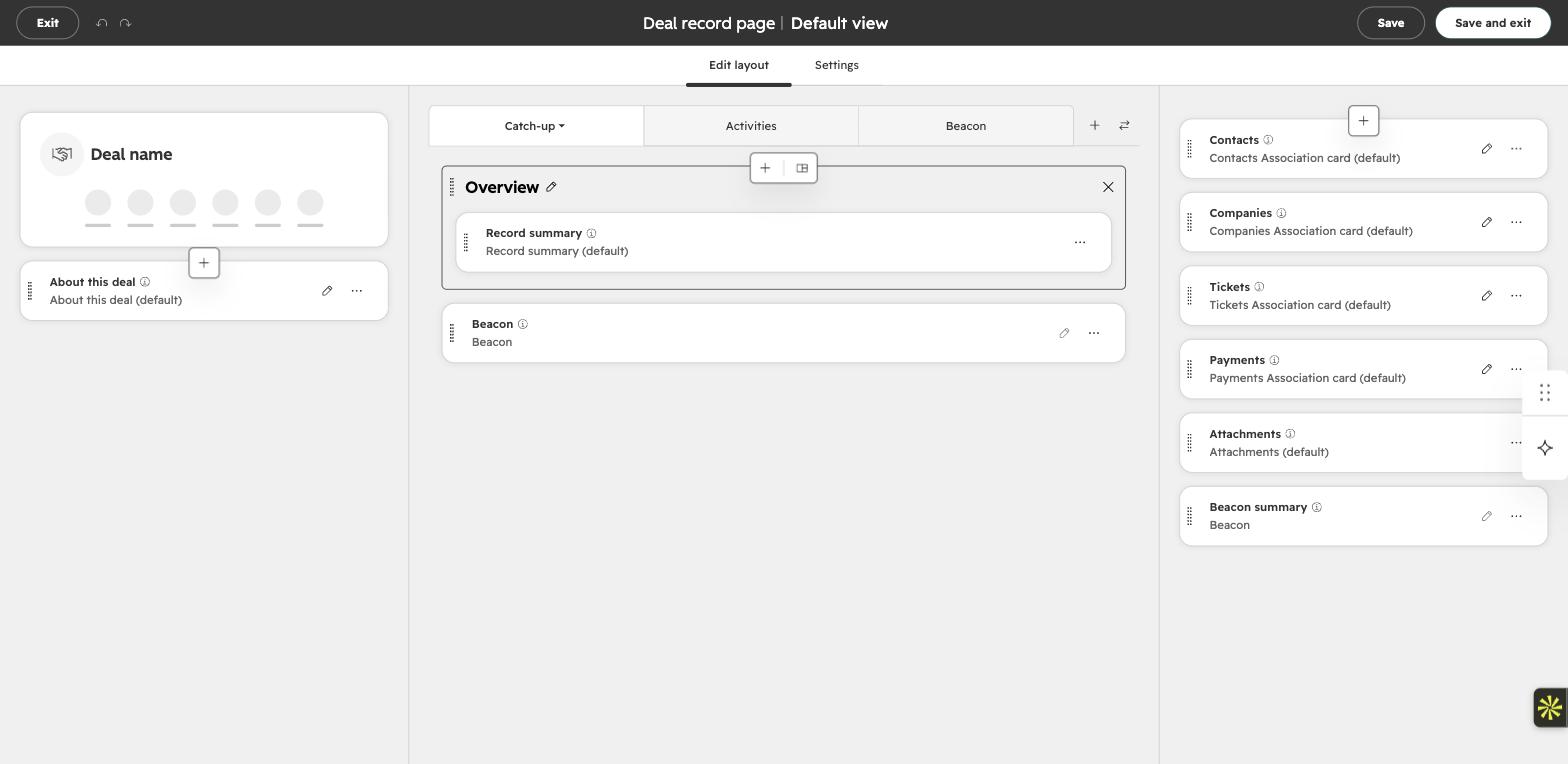
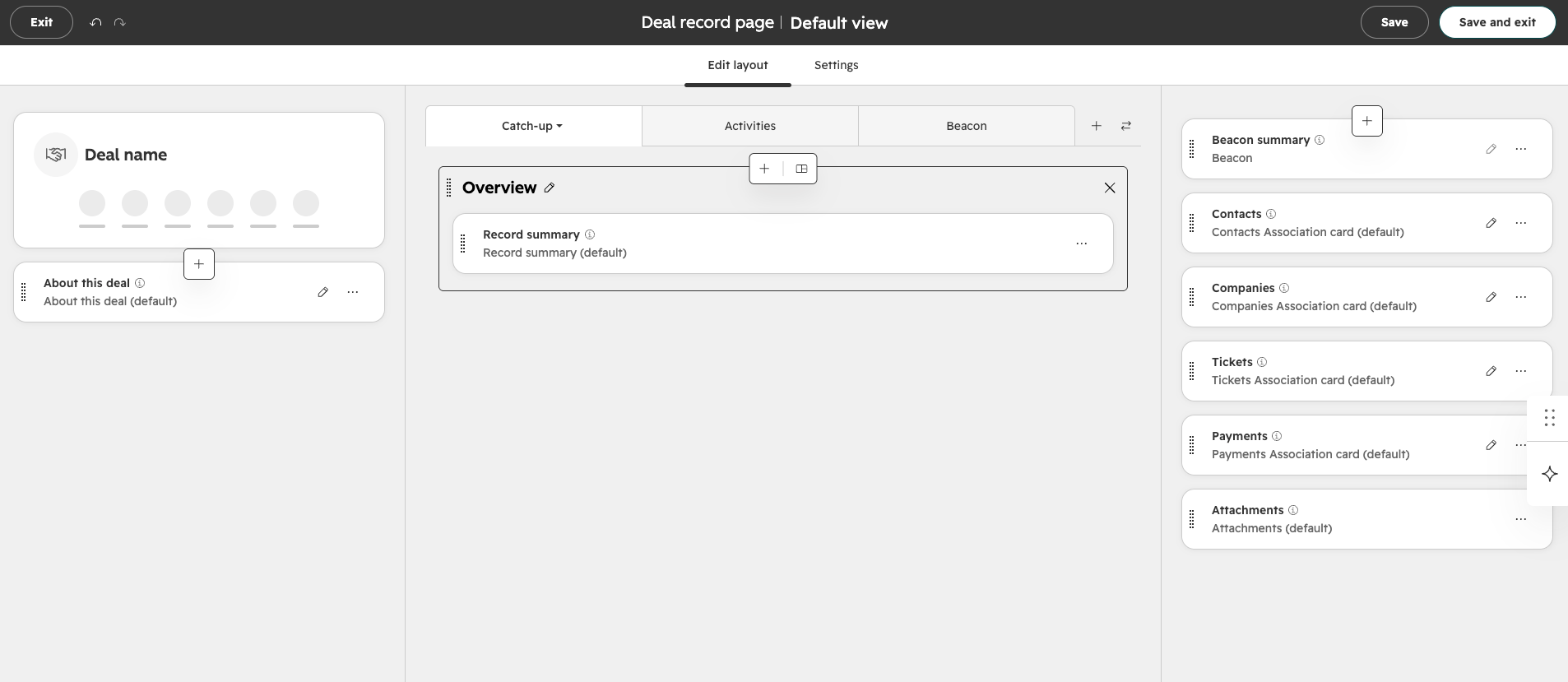
In the right sidebar, drag Beacon summary above the other cards. Select Save and exit.
The deal record layout before the move: Beacon summary is the last card in the right sidebar.
After the move: Beacon summary is the first card in the right sidebar.
3
Do the same for companies
Choose Companies in Select an object and repeat the two steps above.
If your HubSpot has team views (a Professional or Enterprise plan), each team view keeps its own order. Move Beacon summary to the top in each team view too.
Anyone can still drag a card on a record they have open. That changes only their own view, not anyone else’s.
Add the Beacon tab
The Beacon tab is made from a record, not from the app settings.
Don’t add the Beacon card under Manage locations > Middle column. HubSpot then puts it inside the Overview tab, among HubSpot’s own cards and other apps’ cards, not in a tab of its own.
1
Open any company
Open a company and select Customize at the top of the record.
2
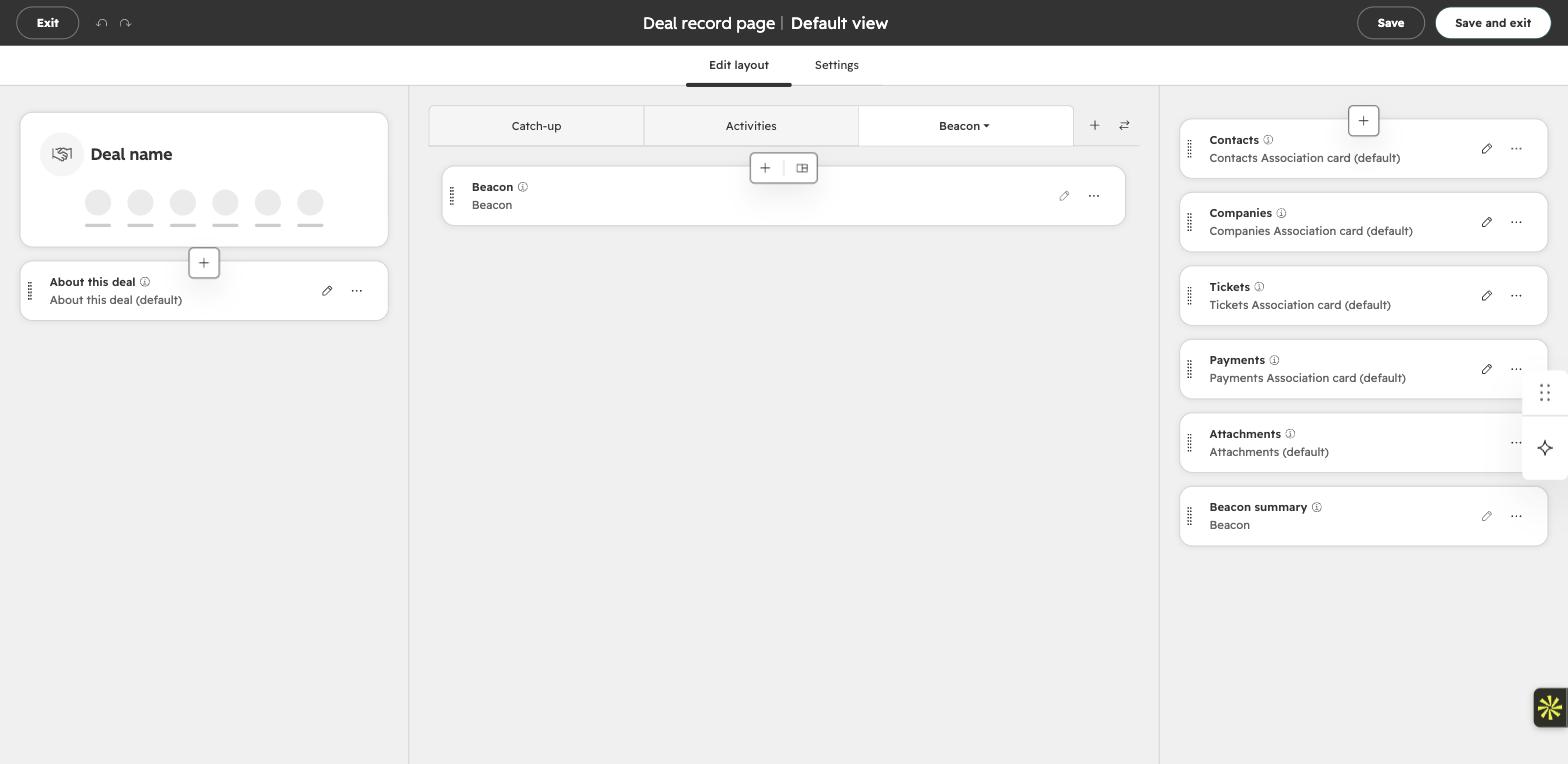
Add a tab named Beacon
Add a tab and name it Beacon.
3
Add the Beacon card to it
From the card library, add the Beacon card to the new tab. Save.
The Beacon tab with the Beacon card on it, next to Catch-up and Activities.
4
Do the same on a deal
Open any deal and repeat the three steps above.
Check it
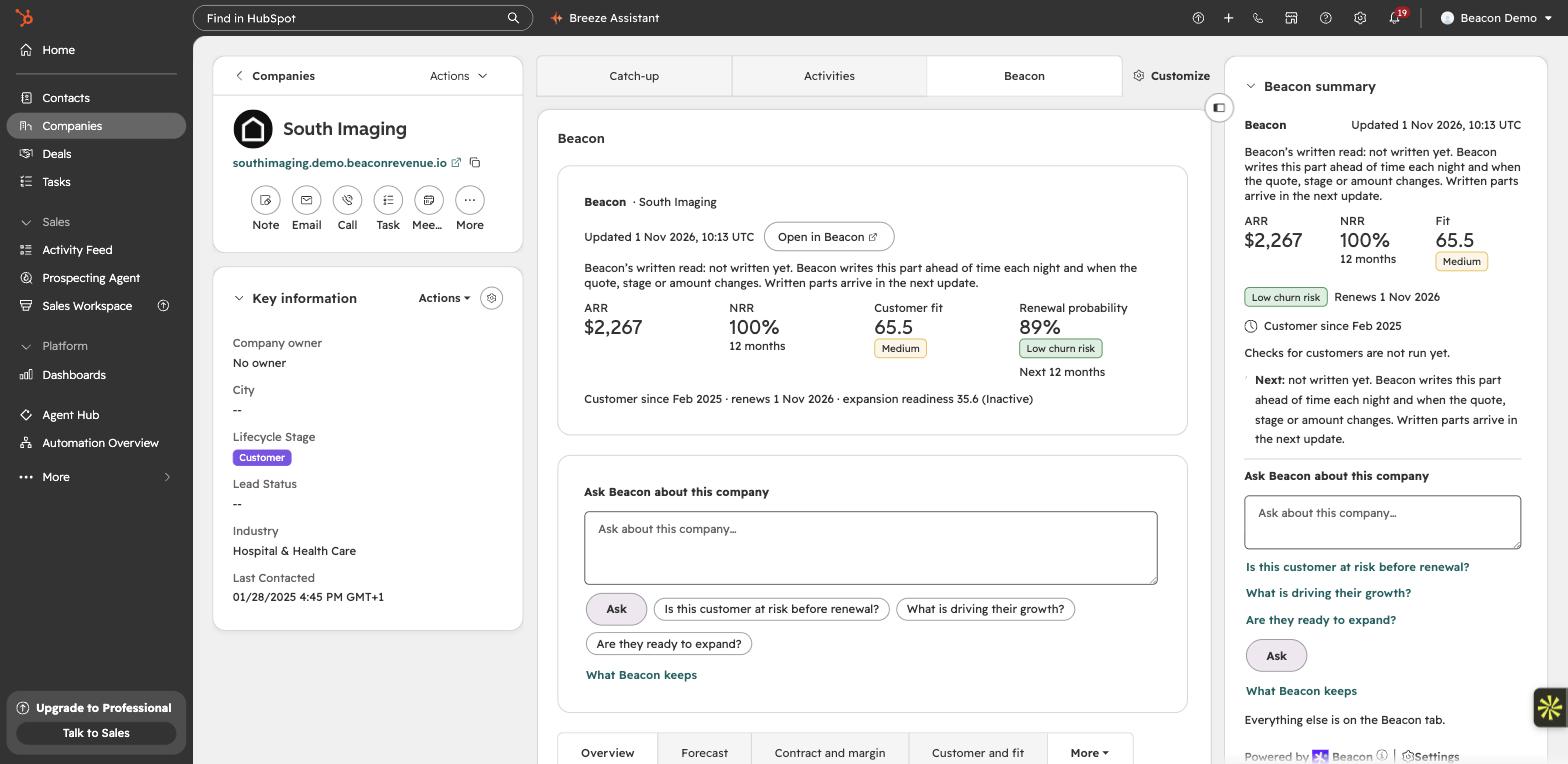
Open a company that pays you. The Beacon summary is at the top on the right, and the Beacon tab sits next to HubSpot’s own tabs. Open an open deal and check the same.
A company with both cards in place: the Beacon tab in the middle and the Beacon summary at the top on the right.
If a card says Link your HubSpot account to Beacon, link that person under Users & permissions > Linked accounts in Beacon. Beacon in HubSpot covers the other messages a card can show.
Who sees the cards
Everyone whose HubSpot account is linked to their Beacon login sees the cards, within their own Beacon access. Access limited to a person’s own deals and customers is coming before pilots: see Access control. Linked accounts explains how people are linked.
Related
Beacon in HubSpot
What the summary and the Beacon tab show, and how fresh they are.
Connect HubSpot
Connect HubSpot and switch on Beacon’s fields.
⌘I
{"docsConfig":{"theme":"luma","$schema":"https://mintlify.com/docs.json","name":"Beacon","description":"Documentation for Beacon — the system recurring-revenue companies run on.","colors":{"primary":"#621FFF","light":"#A78BFF","dark":"#4A17C4"},"logo":{"light":"https://mintlify.s3.us-west-1.amazonaws.com/startup-academy-llc/data:image/svg+xml;base64,PHN2ZyB2aWV3Qm94PSIwIDAgMjU5IDM1IiB4bWxucz0iaHR0cDovL3d3dy53My5vcmcvMjAwMC9zdmciPjxjaXJjbGUgY3g9IjIzLjYiIGN5PSI3LjkiIHI9IjMuMSIgZmlsbD0iIzQyRkY2NiIvPjxwYXRoIGQ9Ik0xMC41IDBIMTYuM0wxNC44IDEzLjhMMTYuMyAyNy41SDEwLjVMMTEuOSAxMy44TDEwLjUgMFoiIGZpbGw9IiMxQTE3MTQiLz48cGF0aCBkPSJNMCA5LjRMMi45IDQuNEwxNC4xIDEyLjVMMjYuNyAxOC4xTDIzLjggMjMuMkwxMi42IDE1TDAgOS40WiIgZmlsbD0iIzFBMTcxNCIvPjxwYXRoIGQ9Ik0wIDE4LjFMMi45IDIzLjJMMTQuMSAxNUwxMi42IDEyLjVMMCAxOC4xWiIgZmlsbD0iIzFBMTcxNCIvPjxwYXRoIGQ9Ik0xMzMuOSAyNy41VjEzLjdMMTMzLjggNS41SDEzOC4yVjEySDEzOUMxMzkuMiAxMC4zIDEzOS42IDguOSAxNDAgNy45QzE0MC41IDYuOSAxNDEuMSA2LjIgMTQxLjkgNS43QzE0Mi43IDUuMiAxNDMuNiA1IDE0NC42IDVDMTQ2LjUgNSAxNDcuOSA1LjcgMTQ4LjggNy4yQzE0OS43IDguNiAxNTAuMiAxMC43IDE1MC4yIDEzLjZWMjcuNUgxNDQuN1YxNC42QzE0NC43IDEzIDE0NC42IDExLjcgMTQ0LjIgMTAuOUMxNDMuOCAxMC4xIDE0My4zIDkuNyAxNDIuNSA5LjdDMTQxLjggOS43IDE0MS4zIDEwIDE0MC44IDEwLjZDMTQwLjMgMTEuMiAxNDAgMTIgMTM5LjcgMTNDMTM5LjUgMTQgMTM5LjMgMTUuMiAxMzkuMyAxNi42VjI3LjVIMTMzLjlaIiBmaWxsPSIjMUExNzE0Ii8+PHBhdGggZD0iTTEyMy4zIDI4QzEyMS40IDI4IDExOS44IDI3LjYgMTE4LjYgMjYuN0MxMTcuMyAyNS44IDExNi4zIDI0LjQgMTE1LjcgMjIuN0MxMTUgMjEgMTE0LjcgMTguOSAxMTQuNyAxNi40QzExNC43IDEzLjggMTE1IDExLjcgMTE1LjcgMTBDMTE2LjQgOC4zIDExNy40IDcuMSAxMTguNyA2LjJDMTIwIDUuNCAxMjEuNiA1IDEyMy40IDVDMTI1LjIgNSAxMjYuOCA1LjQgMTI4LjEgNi4yQzEyOS40IDcuMSAxMzAuMyA4LjMgMTMxIDkuOUMxMzEuNiAxMS42IDEzMiAxMy43IDEzMiAxNi4zQzEzMiAxOC45IDEzMS42IDIxLjEgMTMwLjkgMjIuOEMxMzAuMiAyNC42IDEyOS4yIDI1LjkgMTI3LjkgMjYuOEMxMjYuNyAyNy42IDEyNS4xIDI4IDEyMy4zIDI4Wk0xMjMuNCAyMy45QzEyNC4xIDIzLjkgMTI0LjcgMjMuNiAxMjUuMSAyMy4xQzEyNS42IDIyLjYgMTI1LjkgMjEuOCAxMjYuMSAyMC43QzEyNi40IDE5LjYgMTI2LjUgMTguMyAxMjYuNSAxNi42QzEyNi41IDE0LjkgMTI2LjQgMTMuNSAxMjYuMSAxMi40QzEyNS45IDExLjMgMTI1LjUgMTAuNSAxMjUuMSAxMEMxMjQuNiA5LjUgMTI0IDkuMiAxMjMuMyA5LjJDMTIyLjYgOS4yIDEyMi4xIDkuNSAxMjEuNiA5LjlDMTIxLjEgMTAuNCAxMjAuOCAxMS4zIDEyMC41IDEyLjRDMTIwLjMgMTMuNCAxMjAuMiAxNC44IDEyMC4yIDE2LjZDMTIwLjIgMTkuMSAxMjAuNSAyMC45IDEyMSAyMi4xQzEyMS41IDIzLjMgMTIyLjMgMjMuOSAxMjMuNCAyMy45WiIgZmlsbD0iIzFBMTcxNCIvPjxwYXRoIGQ9Ik0xMDYuMyAyOEMxMDQuNyAyOCAxMDMuMyAyNy43IDEwMi4xIDI3LjFDMTAxIDI2LjUgMTAwIDI1LjcgOTkuMyAyNC43Qzk4LjYgMjMuNyA5OC4xIDIyLjUgOTcuOCAyMS4xQzk3LjUgMTkuOCA5Ny40IDE4LjMgOTcuNCAxNi43Qzk3LjQgMTUuMSA5Ny41IDEzLjcgOTcuOCAxMi4yQzk4LjEgMTAuOCA5OC43IDkuNiA5OS4zIDguNUMxMDAgNy40IDEwMC45IDYuNSAxMDIuMSA1LjlDMTAzLjIgNS4zIDEwNC42IDUgMTA2LjIgNUMxMDcuOSA1IDEwOS4zIDUuNCAxMTAuNSA2LjFDMTExLjYgNi44IDExMi41IDcuNyAxMTMuMSA4LjlDMTEzLjcgMTAgMTEzLjkgMTEuMyAxMTMuOSAxMi43TDEwOC43IDEzLjZDMTA4LjcgMTIuNyAxMDguNiAxMiAxMDguNCAxMS40QzEwOC4yIDEwLjcgMTA3LjkgMTAuMiAxMDcuNSA5LjhDMTA3LjEgOS40IDEwNi42IDkuMiAxMDYgOS4yQzEwNS40IDkuMiAxMDUgOS40IDEwNC41IDkuN0MxMDQuMiAxMCAxMDMuOCAxMC41IDEwMy41IDExLjFDMTAzLjMgMTEuNyAxMDMuMSAxMi40IDEwMyAxMy4zQzEwMi45IDE0LjIgMTAyLjggMTUuMiAxMDIuOCAxNi40QzEwMi44IDE4IDEwMi45IDE5LjMgMTAzLjEgMjAuNUMxMDMuNCAyMS42IDEwMy44IDIyLjQgMTA0LjMgMjNDMTA0LjggMjMuNiAxMDUuNCAyMy44IDEwNi4yIDIzLjhDMTA3IDIzLjggMTA3LjYgMjMuNiAxMDggMjMuMUMxMDguNSAyMi42IDEwOC44IDIyIDEwOSAyMS4zQzEwOS4zIDIwLjUgMTA5LjQgMTkuNyAxMDkuMyAxOC45TDExNC40IDE5LjRDMTE0LjQgMjAuNSAxMTQuMyAyMS41IDExNC4xIDIyLjVDMTEzLjggMjMuNSAxMTMuNCAyNC40IDExMi44IDI1LjNDMTEyLjIgMjYuMSAxMTEuMyAyNi44IDExMC4yIDI3LjNDMTA5LjIgMjcuOCAxMDcuOSAyOCAxMDYuMyAyOFoiIGZpbGw9IiMxQTE3MTQiLz48cGF0aCBkPSJNODQuOCAyOEM4My45IDI4IDgzIDI3LjggODIuMiAyNy4zQzgxLjQgMjYuOSA4MC43IDI2LjMgODAuMiAyNS40Qzc5LjcgMjQuNiA3OS41IDIzLjUgNzkuNSAyMi4yQzc5LjUgMjEuMSA3OS43IDIwLjIgODAgMTkuNUM4MC40IDE4LjcgODAuOSAxOC4xIDgxLjYgMTcuNkM4Mi4zIDE3IDgzIDE2LjYgODMuOSAxNi4yQzg0LjcgMTUuOSA4NS43IDE1LjUgODYuNiAxNS4yQzg3LjQgMTUgODguMSAxNC43IDg4LjYgMTQuNEM4OS4xIDE0LjIgODkuNiAxMy45IDg5LjkgMTMuNUM5MC4yIDEzLjEgOTAuMyAxMi42IDkwLjMgMTEuOUM5MC4zIDExLjEgOTAuMSAxMC41IDg5LjcgMTBDODkuNCA5LjUgODguNyA5LjIgODcuOSA5LjJDODcuMyA5LjIgODYuOCA5LjQgODYuMyA5LjdDODUuOSAxMCA4NS42IDEwLjUgODUuNCAxMS4xQzg1LjIgMTEuNyA4NS4xIDEyLjQgODUuMSAxMy4zTDgwLjEgMTIuOEM4MC4xIDExLjYgODAuMiAxMC41IDgwLjYgOS42QzgwLjkgOC42IDgxLjQgNy44IDgyLjEgNy4xQzgyLjcgNi40IDgzLjUgNS45IDg0LjUgNS41Qzg1LjYgNS4yIDg2LjggNSA4OC4yIDVDOTAgNSA5MS40IDUuMyA5Mi41IDZDOTMuNiA2LjYgOTQuNCA3LjYgOTQuOSA4LjlDOTUuNCAxMC4xIDk1LjcgMTEuOCA5NS43IDEzLjdWMTkuNEM5NS43IDIwLjIgOTUuNyAyMSA5NS43IDIyQzk1LjggMjMgOTUuOSAyMy45IDk1LjkgMjQuOUM5NiAyNS44IDk2LjEgMjYuNyA5Ni4yIDI3LjVIOTEuNUM5MS4zIDI2LjYgOTEuMiAyNS43IDkxLjEgMjQuOUM5MSAyNCA5MSAyMy4yIDkwLjkgMjIuM0g5MC4yQzkwIDIzLjUgODkuNiAyNC42IDg5LjEgMjUuNEM4OC43IDI2LjMgODguMSAyNi45IDg3LjMgMjcuM0M4Ni42IDI3LjggODUuOCAyOCA4NC44IDI4Wk04Ni45IDIzLjZDODcuMyAyMy42IDg3LjcgMjMuNSA4OCAyMy4zQzg4LjQgMjMuMSA4OC43IDIyLjkgODkgMjIuNkM4OS4zIDIyLjMgODkuNSAyMS45IDg5LjcgMjEuNEM5MCAyMSA5MC4xIDIwLjUgOTAuMyAyMFYxNS42TDkxLjYgMTUuNkM5MS4yIDE2IDkwLjggMTYuMyA5MC40IDE2LjVDODkuOSAxNi44IDg5LjQgMTcgODguOSAxNy4yQzg4LjMgMTcuNCA4Ny44IDE3LjYgODcuMyAxNy45Qzg2LjggMTguMSA4Ni4zIDE4LjMgODUuOSAxOC42Qzg1LjUgMTguOSA4NS4yIDE5LjIgODQuOSAxOS42Qzg0LjcgMjAgODQuNSAyMC41IDg0LjUgMjEuMUM4NC41IDIxLjkgODQuOCAyMi41IDg1LjIgMjNDODUuNyAyMy40IDg2LjIgMjMuNiA4Ni45IDIzLjZaIiBmaWxsPSIjMUExNzE0Ii8+PHBhdGggZD0iTTcxLjIgMjhDNjkuNSAyOCA2OC4xIDI3LjcgNjcgMjcuMkM2NS45IDI2LjYgNjQuOSAyNS44IDY0LjMgMjQuOEM2My42IDIzLjcgNjMuMSAyMi41IDYyLjggMjEuMkM2Mi40IDE5LjggNjIuMyAxOC40IDYyLjMgMTYuOEM2Mi4zIDE1LjMgNjIuNCAxMy44IDYyLjcgMTIuNEM2MyAxMSA2My41IDkuNyA2NC4xIDguNkM2NC44IDcuNSA2NS43IDYuNiA2Ni43IDZDNjcuOSA1LjMgNjkuMiA1IDcwLjggNUM3Mi4zIDUgNzMuNiA1LjMgNzQuNiA1LjlDNzUuNyA2LjUgNzYuNSA3LjMgNzcuMSA4LjRDNzcuOCA5LjUgNzguMiAxMC44IDc4LjQgMTIuM0M3OC43IDEzLjcgNzguNyAxNS40IDc4LjYgMTcuMUw2Ni4zIDE3LjRWMTQuNkw3NC42IDE0LjRMNzMuNiAxNS43QzczLjcgMTQuMSA3My43IDEyLjkgNzMuNCAxMkM3My4yIDExIDcyLjkgMTAuNCA3Mi40IDkuOUM3MiA5LjUgNzEuNSA5LjMgNzAuOCA5LjNDNzAuMSA5LjMgNjkuNSA5LjUgNjkgMTAuMUM2OC42IDEwLjYgNjguMiAxMS40IDY4IDEyLjVDNjcuOCAxMy41IDY3LjcgMTQuOSA2Ny43IDE2LjRDNjcuNyAxOC45IDY3LjkgMjAuOCA2OC41IDIyLjFDNjkgMjMuMyA2OS45IDIzLjkgNzEuMSAyMy45QzcxLjUgMjMuOSA3MiAyMy44IDcyLjMgMjMuN0M3Mi43IDIzLjUgNzMgMjMuMiA3My4yIDIyLjlDNzMuNCAyMi41IDczLjYgMjIuMSA3My43IDIxLjZDNzMuOSAyMS4xIDczLjkgMjAuNSA3My45IDE5LjlMNzguOCAyMC40Qzc4LjggMjEuMiA3OC43IDIyLjEgNzguNSAyM0M3OC4zIDIzLjkgNzcuOSAyNC43IDc3LjMgMjUuNUM3Ni44IDI2LjMgNzYgMjYuOSA3NSAyNy4zQzc0IDI3LjggNzIuNyAyOCA3MS4yIDI4WiIgZmlsbD0iIzFBMTcxNCIvPjxwYXRoIGQ9Ik00MyAyNy41VjBINTEuNUM1Mi43IDAgNTMuOCAwLjEgNTQuOCAwLjRDNTUuOSAwLjYgNTYuOCAxIDU3LjYgMS42QzU4LjUgMi4yIDU5LjEgMi45IDU5LjYgMy45QzYwLjEgNC44IDYwLjMgNiA2MC4zIDcuM0M2MC4zIDguNSA2MC4xIDkuNSA1OS43IDEwLjNDNTkuNCAxMS4xIDU4LjggMTEuOCA1OCAxMi4yQzU3LjIgMTIuNyA1Ni4xIDEzIDU0LjggMTMuMlYxMy43QzU3LjEgMTMuOSA1OC43IDE0LjUgNTkuNyAxNS42QzYwLjggMTYuNyA2MS4zIDE4LjMgNjEuMyAyMC4yQzYxLjMgMjEuOCA2MSAyMy4yIDYwLjMgMjQuM0M1OS42IDI1LjMgNTguNiAyNi4xIDU3LjMgMjYuN0M1NS45IDI3LjIgNTQuMiAyNy41IDUyLjIgMjcuNUg0M1pNNDguNCAyMy4xSDUxLjhDNTMuMiAyMy4xIDU0LjIgMjIuOCA1NC44IDIyLjNDNTUuNSAyMS42IDU1LjggMjAuNyA1NS44IDE5LjZDNTUuOCAxOC4zIDU1LjQgMTcuMiA1NC41IDE2LjVDNTMuNyAxNS43IDUyLjYgMTUuNCA1MS4xIDE1LjRINDguNFYyMy4xWk00OC40IDExLjhINTAuNkM1Mi4xIDExLjggNTMuMiAxMS41IDUzLjkgMTAuOUM1NC42IDEwLjMgNTQuOSA5LjMgNTQuOSA4QzU0LjkgNi44IDU0LjYgNS45IDU0IDUuMkM1My40IDQuNiA1Mi40IDQuMyA1MSA0LjNINDguNFYxMS44WiIgZmlsbD0iIzFBMTcxNCIvPjxwYXRoIGQ9Ik0yNTIuNSAyNy44QzI1MS4zIDI3LjggMjUwLjIgMjcuNCAyNDkuMiAyNi42QzI0OC4zIDI1LjggMjQ3LjUgMjQuNiAyNDYuOSAyMy4yQzI0Ni40IDIxLjcgMjQ2LjEgMTkuOSAyNDYuMSAxOEMyNDYuMSAxNiAyNDYuNCAxNC4yIDI0NyAxMi43QzI0Ny41IDExLjEgMjQ4LjMgOS45IDI0OS40IDkuMUMyNTAuNCA4LjIgMjUxLjUgNy44IDI1Mi43IDcuOEMyNTQuMiA3LjggMjU1LjUgOC40IDI1Ni40IDkuN0MyNTcuMyAxMC45IDI1Ny44IDEyLjkgMjU3LjggMTUuNkMyNTcuOCAxNi41IDI1Ny41IDE2LjkgMjU2LjggMTYuOUgyNDkuNkMyNDkuMSAxNi45IDI0OC44IDE3LjIgMjQ4LjggMTcuOEMyNDguOCAyMC41IDI0OS4yIDIyLjUgMjUwIDIzLjhDMjUwLjggMjUuMiAyNTEuOCAyNS45IDI1MyAyNS45QzI1NCAyNS45IDI1NC44IDI1LjUgMjU1LjQgMjQuOEMyNTYgMjQuMSAyNTYuNSAyMyAyNTYuOSAyMS40QzI1Ni45IDIxLjEgMjU3LjEgMjAuOSAyNTcuNCAyMC45QzI1Ny43IDIwLjkgMjU3LjggMjEuMiAyNTcuNyAyMS43QzI1Ny4zIDI0IDI1Ni42IDI1LjYgMjU1LjggMjYuNUMyNTQuOSAyNy40IDI1My44IDI3LjggMjUyLjUgMjcuOFpNMjQ5LjUgMTUuOUgyNTMuM0MyNTQuNSAxNS45IDI1NS4yIDE1LjMgMjU1LjIgMTRDMjU1LjIgMTIuNCAyNTQuOSAxMS4xIDI1NC41IDEwLjJDMjU0LjEgOS4yIDI1My41IDguNyAyNTIuNyA4LjdDMjUxLjcgOC43IDI1MC45IDkuMyAyNTAuMiAxMC41QzI0OS41IDExLjYgMjQ5LjEgMTMuMiAyNDguOSAxNS4zQzI0OC44IDE1LjcgMjQ5IDE1LjkgMjQ5LjUgMTUuOVoiIGZpbGw9IiMxQTE3MTQiLz48cGF0aCBkPSJNMjM0LjggMjcuOEMyMzQuMiAyNy44IDIzMy41IDI3LjcgMjMzIDI3LjRDMjMyLjQgMjcuMSAyMzEuOSAyNi43IDIzMS41IDI2QzIzMS4xIDI1LjQgMjMwLjkgMjQuNiAyMzAuOSAyMy42VjEwLjNDMjMwLjkgOS45IDIzMC45IDkuNiAyMzAuNyA5LjRDMjMwLjYgOS4yIDIzMC4zIDkuMSAyMzAgOS4xTDIyOS4zIDlDMjI4LjkgOSAyMjguNyA4LjggMjI4LjcgOC41QzIyOC43IDguMiAyMjguOSA4IDIyOS40IDhIMjMzQzIzMy4zIDggMjMzLjUgOC4yIDIzMy41IDguNlYyMi44QzIzMy41IDI0IDIzMy44IDI0LjggMjM0LjIgMjUuM0MyMzQuNiAyNS44IDIzNS4zIDI2IDIzNi4xIDI2QzIzNi44IDI2IDIzNy41IDI1LjggMjM4LjEgMjUuNEMyMzguOCAyNC45IDIzOS4yIDI0LjMgMjM5LjYgMjMuNkMyNDAgMjIuOCAyNDAuMiAyMiAyNDAuMiAyMS4xVjEwLjNDMjQwLjIgOS45IDI0MC4xIDkuNiAyMzkuOSA5LjRDMjM5LjggOS4yIDIzOS42IDkuMSAyMzkuMiA5LjFMMjM4LjYgOUMyMzguMSA5IDIzNy45IDguOCAyMzcuOSA4LjVDMjM3LjkgOC4yIDIzOC4yIDggMjM4LjYgOEgyNDIuMkMyNDIuNiA4IDI0Mi44IDguMiAyNDIuOCA4LjZWMjMuNEMyNDIuOCAyMy44IDI0Mi44IDI0LjIgMjQzIDI0LjNDMjQzLjEgMjQuNSAyNDMuNCAyNC42IDI0My43IDI0LjZMMjQ0LjUgMjQuOEMyNDQuOCAyNC44IDI0NSAyNC45IDI0NSAyNS4xQzI0NSAyNS40IDI0NC44IDI1LjUgMjQ0LjQgMjUuNkMyNDMuNiAyNS43IDI0MyAyNS45IDI0Mi41IDI2LjJDMjQyIDI2LjUgMjQxLjYgMjYuOSAyNDEuMyAyNy4zQzI0MSAyNy41IDI0MC45IDI3LjYgMjQwLjcgMjcuNkMyNDAuNSAyNy42IDI0MC40IDI3LjUgMjQwLjQgMjcuMlYyNS40QzI0MC40IDI1LjIgMjQwLjMgMjUuMSAyNDAuMSAyNS4xQzI0MCAyNSAyMzkuOSAyNS4xIDIzOS43IDI1LjJDMjM4LjggMjYuMiAyMzcuOSAyNi44IDIzNy4yIDI3LjJDMjM2LjUgMjcuNiAyMzUuNyAyNy44IDIzNC44IDI3LjhaIiBmaWxsPSIjMUExNzE0Ii8+PHBhdGggZD0iTTIxMS45IDI3LjVDMjExLjUgMjcuNSAyMTEuMyAyNy4zIDIxMS4zIDI3QzIxMS4zIDI2LjggMjExLjUgMjYuNyAyMTEuOCAyNi42TDIxMi4zIDI2LjVDMjEyLjggMjYuNCAyMTMuMiAyNi4zIDIxMy4zIDI2QzIxMy41IDI1LjggMjEzLjYgMjUuNCAyMTMuNiAyNC45VjEyLjFDMjEzLjYgMTEuNiAyMTMuNSAxMS4zIDIxMy4zIDExLjJDMjEzLjIgMTEgMjEzIDEwLjkgMjEyLjYgMTAuOEwyMTEuOCAxMC43QzIxMS41IDEwLjcgMjExLjMgMTAuNiAyMTEuMyAxMC4zQzIxMS4zIDEwLjEgMjExLjUgMTAgMjExLjkgOS45QzIxMi43IDkuOCAyMTMuMyA5LjYgMjEzLjcgOS4zQzIxNC4yIDkgMjE0LjYgOC43IDIxNS4xIDguMkMyMTUuMyA4IDIxNS41IDcuOSAyMTUuNiA3LjlDMjE1LjkgNy45IDIxNiA4LjEgMjE2IDguNFYxMC4xQzIxNiAxMC4zIDIxNi4xIDEwLjUgMjE2LjIgMTAuNUMyMTYuNCAxMC42IDIxNi42IDEwLjUgMjE2LjggMTAuM0MyMTcuOCA5LjMgMjE4LjcgOC43IDIxOS40IDguM0MyMjAuMiA4IDIyMS4xIDcuOCAyMjEuOSA3LjhDMjIzLjEgNy44IDIyNCA4LjIgMjI0LjcgOUMyMjUuNCA5LjggMjI1LjcgMTEgMjI1LjcgMTIuNVYyNC45QzIyNS43IDI1LjQgMjI1LjggMjUuOCAyMjUuOSAyNkMyMjYuMSAyNi4zIDIyNi41IDI2LjQgMjI3IDI2LjVMMjI3LjggMjYuNkMyMjguMSAyNi42IDIyOC4yIDI2LjggMjI4LjIgMjdDMjI4LjIgMjcuMyAyMjguMSAyNy41IDIyNy44IDI3LjVIMjIxLjRDMjIxIDI3LjUgMjIwLjkgMjcuMyAyMjAuOSAyN0MyMjAuOSAyNi44IDIyMSAyNi42IDIyMS4zIDI2LjZMMjIxLjggMjYuNUMyMjIuMyAyNi40IDIyMi43IDI2LjMgMjIyLjggMjZDMjIzIDI1LjggMjIzLjEgMjUuNCAyMjMuMSAyNC45VjEyLjlDMjIzLjEgMTEuNyAyMjIuOSAxMC44IDIyMi40IDEwLjNDMjIyIDkuOCAyMjEuMyA5LjUgMjIwLjUgOS41QzIxOS43IDkuNSAyMTguOSA5LjggMjE4LjMgMTAuM0MyMTcuNiAxMC43IDIxNy4xIDExLjMgMjE2LjcgMTIuMUMyMTYuNCAxMi45IDIxNi4yIDEzLjcgMjE2LjIgMTQuN1YyNC45QzIxNi4yIDI1LjQgMjE2LjIgMjUuOCAyMTYuNCAyNkMyMTYuNiAyNi4zIDIxNi45IDI2LjQgMjE3LjUgMjYuNUwyMTguNSAyNi42QzIxOC44IDI2LjYgMjE4LjkgMjYuOCAyMTguOSAyN0MyMTguOSAyNy4zIDIxOC43IDI3LjUgMjE4LjMgMjcuNUgyMTEuOVoiIGZpbGw9IiMxQTE3MTQiLz48cGF0aCBkPSJNMjA0LjkgMjcuOEMyMDMuNyAyNy44IDIwMi42IDI3LjQgMjAxLjYgMjYuNkMyMDAuNyAyNS44IDE5OS45IDI0LjYgMTk5LjMgMjMuMkMxOTguNyAyMS43IDE5OC41IDE5LjkgMTk4LjUgMThDMTk4LjUgMTYgMTk4LjggMTQuMiAxOTkuMyAxMi43QzE5OS45IDExLjEgMjAwLjcgOS45IDIwMS43IDkuMUMyMDIuOCA4LjIgMjAzLjkgNy44IDIwNS4xIDcuOEMyMDYuNiA3LjggMjA3LjggOC40IDIwOC44IDkuN0MyMDkuNyAxMC45IDIxMC4yIDEyLjkgMjEwLjIgMTUuNkMyMTAuMiAxNi41IDIwOS44IDE2LjkgMjA5LjIgMTYuOUgyMDJDMjAxLjUgMTYuOSAyMDEuMiAxNy4yIDIwMS4yIDE3LjhDMjAxLjIgMjAuNSAyMDEuNiAyMi41IDIwMi40IDIzLjhDMjAzLjIgMjUuMiAyMDQuMiAyNS45IDIwNS40IDI1LjlDMjA2LjQgMjUuOSAyMDcuMiAyNS41IDIwNy44IDI0LjhDMjA4LjQgMjQuMSAyMDguOSAyMyAyMDkuMiAyMS40QzIwOS4zIDIxLjEgMjA5LjUgMjAuOSAyMDkuNyAyMC45QzIxMCAyMC45IDIxMC4yIDIxLjIgMjEwLjEgMjEuN0MyMDkuNyAyNCAyMDkgMjUuNiAyMDguMSAyNi41QzIwNy4zIDI3LjQgMjA2LjIgMjcuOCAyMDQuOSAyNy44Wk0yMDEuOSAxNS45SDIwNS43QzIwNi45IDE1LjkgMjA3LjUgMTUuMyAyMDcuNSAxNEMyMDcuNSAxMi40IDIwNy4zIDExLjEgMjA2LjkgMTAuMkMyMDYuNSA5LjIgMjA1LjkgOC43IDIwNS4xIDguN0MyMDQuMSA4LjcgMjAzLjMgOS4zIDIwMi42IDEwLjVDMjAxLjkgMTEuNiAyMDEuNSAxMy4yIDIwMS4zIDE1LjNDMjAxLjIgMTUuNyAyMDEuNCAxNS45IDIwMS45IDE1LjlaIiBmaWxsPSIjMUExNzE0Ii8+PHBhdGggZD0iTTE5MC44IDI3LjhDMTkwLjYgMjcuOCAxOTAuNCAyNy43IDE5MC4zIDI3LjRMMTg1LjMgMTAuNkMxODUuMSAxMCAxODQuOSA5LjYgMTg0LjcgOS40QzE4NC42IDkuMiAxODQuMyA5LjEgMTg0IDlMMTgzLjQgOC45QzE4My4xIDguOCAxODIuOSA4LjcgMTgyLjkgOC40QzE4Mi45IDguMSAxODMuMSA4IDE4My40IDhIMTg5LjdDMTkwLjEgOCAxOTAuMyA4LjEgMTkwLjMgOC40QzE5MC4zIDguNyAxOTAuMSA4LjggMTg5LjggOC45TDE4OS4yIDlDMTg4LjYgOSAxODguMiA5LjIgMTg4IDkuNEMxODcuOSA5LjYgMTg3LjkgMTAgMTg4IDEwLjZMMTkxLjIgMjEuNkMxOTEuMyAyMS45IDE5MS40IDIyIDE5MS42IDIyQzE5MS43IDIyIDE5MS45IDIxLjkgMTkxLjkgMjEuNkwxOTUgMTEuM0MxOTUuMiAxMC42IDE5NS4zIDEwLjEgMTk1LjIgOS43QzE5NS4xIDkuNCAxOTQuOCA5LjEgMTk0LjEgOUwxOTMuMyA4LjlDMTkzIDguOCAxOTIuOCA4LjcgMTkyLjggOC40QzE5Mi44IDguMSAxOTMgOCAxOTMuNCA4SDE5OC4yQzE5OC42IDggMTk4LjcgOC4yIDE5OC43IDguNEMxOTguNyA4LjcgMTk4LjYgOC45IDE5OC4zIDlMMTk3LjkgOS4xQzE5Ny42IDkuMiAxOTcuMiA5LjQgMTk2LjkgOS44QzE5Ni43IDEwLjEgMTk2LjQgMTAuNyAxOTYuMiAxMS41TDE5MS4zIDI3LjRDMTkxLjIgMjcuNyAxOTEuMSAyNy44IDE5MC44IDI3LjhaIiBmaWxsPSIjMUExNzE0Ii8+PHBhdGggZD0iTTE3Ny42IDI3LjhDMTc2LjQgMjcuOCAxNzUuMyAyNy40IDE3NC4zIDI2LjZDMTczLjQgMjUuOCAxNzIuNiAyNC42IDE3MiAyMy4yQzE3MS40IDIxLjcgMTcxLjIgMTkuOSAxNzEuMiAxOEMxNzEuMiAxNiAxNzEuNCAxNC4yIDE3MiAxMi43QzE3Mi42IDExLjEgMTczLjQgOS45IDE3NC40IDkuMUMxNzUuNSA4LjIgMTc2LjYgNy44IDE3Ny44IDcuOEMxNzkuMyA3LjggMTgwLjUgOC40IDE4MS40IDkuN0MxODIuNCAxMC45IDE4Mi45IDEyLjkgMTgyLjkgMTUuNkMxODIuOSAxNi41IDE4Mi41IDE2LjkgMTgxLjkgMTYuOUgxNzQuN0MxNzQuMiAxNi45IDE3My45IDE3LjIgMTczLjkgMTcuOEMxNzMuOSAyMC41IDE3NC4zIDIyLjUgMTc1LjEgMjMuOEMxNzUuOSAyNS4yIDE3Ni45IDI1LjkgMTc4LjEgMjUuOUMxNzkuMSAyNS45IDE3OS44IDI1LjUgMTgwLjUgMjQuOEMxODEuMSAyNC4xIDE4MS42IDIzIDE4MS45IDIxLjRDMTgyIDIxLjEgMTgyLjIgMjAuOSAxODIuNCAyMC45QzE4Mi43IDIwLjkgMTgyLjkgMjEuMiAxODIuOCAyMS43QzE4Mi40IDI0IDE4MS43IDI1LjYgMTgwLjggMjYuNUMxNzkuOSAyNy40IDE3OC45IDI3LjggMTc3LjYgMjcuOFpNMTc0LjUgMTUuOUgxNzguNEMxNzkuNiAxNS45IDE4MC4yIDE1LjMgMTgwLjIgMTRDMTgwLjIgMTIuNCAxODAgMTEuMSAxNzkuNiAxMC4yQzE3OS4yIDkuMiAxNzguNiA4LjcgMTc3LjggOC43QzE3Ni44IDguNyAxNzYgOS4zIDE3NS4zIDEwLjVDMTc0LjYgMTEuNiAxNzQuMiAxMy4yIDE3NCAxNS4zQzE3My45IDE1LjcgMTc0LjEgMTUuOSAxNzQuNSAxNS45WiIgZmlsbD0iIzFBMTcxNCIvPjxwYXRoIGQ9Ik0xNjkuMiAyNy44QzE2NyAyNy44IDE2NS42IDI2LjQgMTY1IDIzLjVMMTY0LjEgMTkuMkMxNjMuOCAxNy45IDE2My41IDE2LjggMTYzLjEgMTYuMUMxNjIuOCAxNS40IDE2Mi4zIDE0LjkgMTYxLjcgMTQuN0MxNjEuMSAxNC40IDE2MC4zIDE0LjMgMTU5LjMgMTQuM0MxNTguOSAxNC4zIDE1OC43IDE0LjQgMTU4LjUgMTQuNkMxNTguMiAxNC44IDE1OC4xIDE1IDE1OC4xIDE1LjNWMjQuOEMxNTguMSAyNS4zIDE1OC4yIDI1LjcgMTU4LjUgMjUuOUMxNTguNyAyNi4xIDE1OS4xIDI2LjIgMTU5LjggMjYuNEwxNjEuMiAyNi42QzE2MS41IDI2LjYgMTYxLjcgMjYuOCAxNjEuNyAyN0MxNjEuNyAyNy4zIDE2MS41IDI3LjUgMTYxLjEgMjcuNUgxNTMuM0MxNTMgMjcuNSAxNTIuOCAyNy4zIDE1Mi44IDI3QzE1Mi44IDI2LjggMTUyLjkgMjYuNyAxNTMuMyAyNi42TDE1NC4xIDI2LjRDMTU0LjcgMjYuMyAxNTUgMjYuMiAxNTUuMiAyNkMxNTUuNCAyNS44IDE1NS40IDI1LjUgMTU1LjQgMjQuOVYyLjVDMTU1LjQgMiAxNTUuNCAxLjYgMTU1LjIgMS41QzE1NSAxLjMgMTU0LjcgMS4xIDE1NC4xIDFMMTUzLjMgMC45QzE1Mi45IDAuOCAxNTIuOCAwLjcgMTUyLjggMC40QzE1Mi44IDAuMiAxNTMgMCAxNTMuMyAwSDE2MS4xQzE2Mi42IDAgMTYzLjkgMC4zIDE2NS4xIDAuOUMxNjYuMyAxLjUgMTY3LjIgMi4zIDE2Ny44IDMuM0MxNjguNSA0LjMgMTY4LjggNS41IDE2OC44IDYuOUMxNjguOCA4LjUgMTY4LjMgOS45IDE2Ny40IDExLjJDMTY2LjQgMTIuNSAxNjUuMiAxMy40IDE2My43IDEzLjlDMTYzLjUgMTQgMTYzLjQgMTQuMSAxNjMuNCAxNC4yQzE2My40IDE0LjMgMTYzLjUgMTQuNCAxNjMuNyAxNC41QzE2NC41IDE0LjggMTY1LjEgMTUuNCAxNjUuNiAxNi4xQzE2Ni4xIDE2LjcgMTY2LjQgMTcuNyAxNjYuNyAxOC44TDE2Ny41IDIyLjdDMTY3LjggMjQgMTY4LjEgMjUgMTY4LjUgMjUuNUMxNjguOSAyNi4xIDE2OS40IDI2LjQgMTcwIDI2LjRDMTcwLjIgMjYuNCAxNzAuMyAyNi4zIDE3MC41IDI2LjNDMTcwLjcgMjYuMiAxNzAuOSAyNi4xIDE3MS4xIDI1LjlDMTcxLjMgMjUuOCAxNzEuNSAyNS43IDE3MS43IDI1LjhDMTcxLjkgMjUuOSAxNzIgMjYgMTcyIDI2LjJDMTcyIDI2LjYgMTcxLjcgMjcgMTcxLjEgMjcuM0MxNzAuNiAyNy42IDE2OS45IDI3LjggMTY5LjIgMjcuOFpNMTYwLjcgMTMuM0MxNjIuNCAxMy4zIDE2My43IDEyLjcgMTY0LjYgMTEuNkMxNjUuNSAxMC40IDE2NiA4LjkgMTY2IDdDMTY2IDUuMSAxNjUuNCAzLjYgMTY0LjQgMi42QzE2My40IDEuNSAxNjIgMSAxNjAuMiAxQzE1OC44IDEgMTU4LjEgMS41IDE1OC4xIDIuNVYxMS4yQzE1OC4xIDEyLjYgMTU5IDEzLjMgMTYwLjcgMTMuM1oiIGZpbGw9IiMxQTE3MTQiLz48L3N2Zz4=","dark":"https://mintlify.s3.us-west-1.amazonaws.com/startup-academy-llc/data:image/svg+xml;base64,PHN2ZyB2aWV3Qm94PSIwIDAgMjU5IDM1IiB4bWxucz0iaHR0cDovL3d3dy53My5vcmcvMjAwMC9zdmciPjxjaXJjbGUgY3g9IjIzLjYiIGN5PSI3LjkiIHI9IjMuMSIgZmlsbD0iIzQyRkY2NiIvPjxwYXRoIGQ9Ik0xMC41IDBIMTYuM0wxNC44IDEzLjhMMTYuMyAyNy41SDEwLjVMMTEuOSAxMy44TDEwLjUgMFoiIGZpbGw9IiMxQTE3MTQiLz48cGF0aCBkPSJNMCA5LjRMMi45IDQuNEwxNC4xIDEyLjVMMjYuNyAxOC4xTDIzLjggMjMuMkwxMi42IDE1TDAgOS40WiIgZmlsbD0iIzFBMTcxNCIvPjxwYXRoIGQ9Ik0wIDE4LjFMMi45IDIzLjJMMTQuMSAxNUwxMi42IDEyLjVMMCAxOC4xWiIgZmlsbD0iIzFBMTcxNCIvPjxwYXRoIGQ9Ik0xMzMuOSAyNy41VjEzLjdMMTMzLjggNS41SDEzOC4yVjEySDEzOUMxMzkuMiAxMC4zIDEzOS42IDguOSAxNDAgNy45QzE0MC41IDYuOSAxNDEuMSA2LjIgMTQxLjkgNS43QzE0Mi43IDUuMiAxNDMuNiA1IDE0NC42IDVDMTQ2LjUgNSAxNDcuOSA1LjcgMTQ4LjggNy4yQzE0OS43IDguNiAxNTAuMiAxMC43IDE1MC4yIDEzLjZWMjcuNUgxNDQuN1YxNC42QzE0NC43IDEzIDE0NC42IDExLjcgMTQ0LjIgMTAuOUMxNDMuOCAxMC4xIDE0My4zIDkuNyAxNDIuNSA5LjdDMTQxLjggOS43IDE0MS4zIDEwIDE0MC44IDEwLjZDMTQwLjMgMTEuMiAxNDAgMTIgMTM5LjcgMTNDMTM5LjUgMTQgMTM5LjMgMTUuMiAxMzkuMyAxNi42VjI3LjVIMTMzLjlaIiBmaWxsPSIjMUExNzE0Ii8+PHBhdGggZD0iTTEyMy4zIDI4QzEyMS40IDI4IDExOS44IDI3LjYgMTE4LjYgMjYuN0MxMTcuMyAyNS44IDExNi4zIDI0LjQgMTE1LjcgMjIuN0MxMTUgMjEgMTE0LjcgMTguOSAxMTQuNyAxNi40QzExNC43IDEzLjggMTE1IDExLjcgMTE1LjcgMTBDMTE2LjQgOC4zIDExNy40IDcuMSAxMTguNyA2LjJDMTIwIDUuNCAxMjEuNiA1IDEyMy40IDVDMTI1LjIgNSAxMjYuOCA1LjQgMTI4LjEgNi4yQzEyOS40IDcuMSAxMzAuMyA4LjMgMTMxIDkuOUMxMzEuNiAxMS42IDEzMiAxMy43IDEzMiAxNi4zQzEzMiAxOC45IDEzMS42IDIxLjEgMTMwLjkgMjIuOEMxMzAuMiAyNC42IDEyOS4yIDI1LjkgMTI3LjkgMjYuOEMxMjYuNyAyNy42IDEyNS4xIDI4IDEyMy4zIDI4Wk0xMjMuNCAyMy45QzEyNC4xIDIzLjkgMTI0LjcgMjMuNiAxMjUuMSAyMy4xQzEyNS42IDIyLjYgMTI1LjkgMjEuOCAxMjYuMSAyMC43QzEyNi40IDE5LjYgMTI2LjUgMTguMyAxMjYuNSAxNi42QzEyNi41IDE0LjkgMTI2LjQgMTMuNSAxMjYuMSAxMi40QzEyNS45IDExLjMgMTI1LjUgMTAuNSAxMjUuMSAxMEMxMjQuNiA5LjUgMTI0IDkuMiAxMjMuMyA5LjJDMTIyLjYgOS4yIDEyMi4xIDkuNSAxMjEuNiA5LjlDMTIxLjEgMTAuNCAxMjAuOCAxMS4zIDEyMC41IDEyLjRDMTIwLjMgMTMuNCAxMjAuMiAxNC44IDEyMC4yIDE2LjZDMTIwLjIgMTkuMSAxMjAuNSAyMC45IDEyMSAyMi4xQzEyMS41IDIzLjMgMTIyLjMgMjMuOSAxMjMuNCAyMy45WiIgZmlsbD0iIzFBMTcxNCIvPjxwYXRoIGQ9Ik0xMDYuMyAyOEMxMDQuNyAyOCAxMDMuMyAyNy43IDEwMi4xIDI3LjFDMTAxIDI2LjUgMTAwIDI1LjcgOTkuMyAyNC43Qzk4LjYgMjMuNyA5OC4xIDIyLjUgOTcuOCAyMS4xQzk3LjUgMTkuOCA5Ny40IDE4LjMgOTcuNCAxNi43Qzk3LjQgMTUuMSA5Ny41IDEzLjcgOTcuOCAxMi4yQzk4LjEgMTAuOCA5OC43IDkuNiA5OS4zIDguNUMxMDAgNy40IDEwMC45IDYuNSAxMDIuMSA1LjlDMTAzLjIgNS4zIDEwNC42IDUgMTA2LjIgNUMxMDcuOSA1IDEwOS4zIDUuNCAxMTAuNSA2LjFDMTExLjYgNi44IDExMi41IDcuNyAxMTMuMSA4LjlDMTEzLjcgMTAgMTEzLjkgMTEuMyAxMTMuOSAxMi43TDEwOC43IDEzLjZDMTA4LjcgMTIuNyAxMDguNiAxMiAxMDguNCAxMS40QzEwOC4yIDEwLjcgMTA3LjkgMTAuMiAxMDcuNSA5LjhDMTA3LjEgOS40IDEwNi42IDkuMiAxMDYgOS4yQzEwNS40IDkuMiAxMDUgOS40IDEwNC41IDkuN0MxMDQuMiAxMCAxMDMuOCAxMC41IDEwMy41IDExLjFDMTAzLjMgMTEuNyAxMDMuMSAxMi40IDEwMyAxMy4zQzEwMi45IDE0LjIgMTAyLjggMTUuMiAxMDIuOCAxNi40QzEwMi44IDE4IDEwMi45IDE5LjMgMTAzLjEgMjAuNUMxMDMuNCAyMS42IDEwMy44IDIyLjQgMTA0LjMgMjNDMTA0LjggMjMuNiAxMDUuNCAyMy44IDEwNi4yIDIzLjhDMTA3IDIzLjggMTA3LjYgMjMuNiAxMDggMjMuMUMxMDguNSAyMi42IDEwOC44IDIyIDEwOSAyMS4zQzEwOS4zIDIwLjUgMTA5LjQgMTkuNyAxMDkuMyAxOC45TDExNC40IDE5LjRDMTE0LjQgMjAuNSAxMTQuMyAyMS41IDExNC4xIDIyLjVDMTEzLjggMjMuNSAxMTMuNCAyNC40IDExMi44IDI1LjNDMTEyLjIgMjYuMSAxMTEuMyAyNi44IDExMC4yIDI3LjNDMTA5LjIgMjcuOCAxMDcuOSAyOCAxMDYuMyAyOFoiIGZpbGw9IiMxQTE3MTQiLz48cGF0aCBkPSJNODQuOCAyOEM4My45IDI4IDgzIDI3LjggODIuMiAyNy4zQzgxLjQgMjYuOSA4MC43IDI2LjMgODAuMiAyNS40Qzc5LjcgMjQuNiA3OS41IDIzLjUgNzkuNSAyMi4yQzc5LjUgMjEuMSA3OS43IDIwLjIgODAgMTkuNUM4MC40IDE4LjcgODAuOSAxOC4xIDgxLjYgMTcuNkM4Mi4zIDE3IDgzIDE2LjYgODMuOSAxNi4yQzg0LjcgMTUuOSA4NS43IDE1LjUgODYuNiAxNS4yQzg3LjQgMTUgODguMSAxNC43IDg4LjYgMTQuNEM4OS4xIDE0LjIgODkuNiAxMy45IDg5LjkgMTMuNUM5MC4yIDEzLjEgOTAuMyAxMi42IDkwLjMgMTEuOUM5MC4zIDExLjEgOTAuMSAxMC41IDg5LjcgMTBDODkuNCA5LjUgODguNyA5LjIgODcuOSA5LjJDODcuMyA5LjIgODYuOCA5LjQgODYuMyA5LjdDODUuOSAxMCA4NS42IDEwLjUgODUuNCAxMS4xQzg1LjIgMTEuNyA4NS4xIDEyLjQgODUuMSAxMy4zTDgwLjEgMTIuOEM4MC4xIDExLjYgODAuMiAxMC41IDgwLjYgOS42QzgwLjkgOC42IDgxLjQgNy44IDgyLjEgNy4xQzgyLjcgNi40IDgzLjUgNS45IDg0LjUgNS41Qzg1LjYgNS4yIDg2LjggNSA4OC4yIDVDOTAgNSA5MS40IDUuMyA5Mi41IDZDOTMuNiA2LjYgOTQuNCA3LjYgOTQuOSA4LjlDOTUuNCAxMC4xIDk1LjcgMTEuOCA5NS43IDEzLjdWMTkuNEM5NS43IDIwLjIgOTUuNyAyMSA5NS43IDIyQzk1LjggMjMgOTUuOSAyMy45IDk1LjkgMjQuOUM5NiAyNS44IDk2LjEgMjYuNyA5Ni4yIDI3LjVIOTEuNUM5MS4zIDI2LjYgOTEuMiAyNS43IDkxLjEgMjQuOUM5MSAyNCA5MSAyMy4yIDkwLjkgMjIuM0g5MC4yQzkwIDIzLjUgODkuNiAyNC42IDg5LjEgMjUuNEM4OC43IDI2LjMgODguMSAyNi45IDg3LjMgMjcuM0M4Ni42IDI3LjggODUuOCAyOCA4NC44IDI4Wk04Ni45IDIzLjZDODcuMyAyMy42IDg3LjcgMjMuNSA4OCAyMy4zQzg4LjQgMjMuMSA4OC43IDIyLjkgODkgMjIuNkM4OS4zIDIyLjMgODkuNSAyMS45IDg5LjcgMjEuNEM5MCAyMSA5MC4xIDIwLjUgOTAuMyAyMFYxNS42TDkxLjYgMTUuNkM5MS4yIDE2IDkwLjggMTYuMyA5MC40IDE2LjVDODkuOSAxNi44IDg5LjQgMTcgODguOSAxNy4yQzg4LjMgMTcuNCA4Ny44IDE3LjYgODcuMyAxNy45Qzg2LjggMTguMSA4Ni4zIDE4LjMgODUuOSAxOC42Qzg1LjUgMTguOSA4NS4yIDE5LjIgODQuOSAxOS42Qzg0LjcgMjAgODQuNSAyMC41IDg0LjUgMjEuMUM4NC41IDIxLjkgODQuOCAyMi41IDg1LjIgMjNDODUuNyAyMy40IDg2LjIgMjMuNiA4Ni45IDIzLjZaIiBmaWxsPSIjMUExNzE0Ii8+PHBhdGggZD0iTTcxLjIgMjhDNjkuNSAyOCA2OC4xIDI3LjcgNjcgMjcuMkM2NS45IDI2LjYgNjQuOSAyNS44IDY0LjMgMjQuOEM2My42IDIzLjcgNjMuMSAyMi41IDYyLjggMjEuMkM2Mi40IDE5LjggNjIuMyAxOC40IDYyLjMgMTYuOEM2Mi4zIDE1LjMgNjIuNCAxMy44IDYyLjcgMTIuNEM2MyAxMSA2My41IDkuNyA2NC4xIDguNkM2NC44IDcuNSA2NS43IDYuNiA2Ni43IDZDNjcuOSA1LjMgNjkuMiA1IDcwLjggNUM3Mi4zIDUgNzMuNiA1LjMgNzQuNiA1LjlDNzUuNyA2LjUgNzYuNSA3LjMgNzcuMSA4LjRDNzcuOCA5LjUgNzguMiAxMC44IDc4LjQgMTIuM0M3OC43IDEzLjcgNzguNyAxNS40IDc4LjYgMTcuMUw2Ni4zIDE3LjRWMTQuNkw3NC42IDE0LjRMNzMuNiAxNS43QzczLjcgMTQuMSA3My43IDEyLjkgNzMuNCAxMkM3My4yIDExIDcyLjkgMTAuNCA3Mi40IDkuOUM3MiA5LjUgNzEuNSA5LjMgNzAuOCA5LjNDNzAuMSA5LjMgNjkuNSA5LjUgNjkgMTAuMUM2OC42IDEwLjYgNjguMiAxMS40IDY4IDEyLjVDNjcuOCAxMy41IDY3LjcgMTQuOSA2Ny43IDE2LjRDNjcuNyAxOC45IDY3LjkgMjAuOCA2OC41IDIyLjFDNjkgMjMuMyA2OS45IDIzLjkgNzEuMSAyMy45QzcxLjUgMjMuOSA3MiAyMy44IDcyLjMgMjMuN0M3Mi43IDIzLjUgNzMgMjMuMiA3My4yIDIyLjlDNzMuNCAyMi41IDczLjYgMjIuMSA3My43IDIxLjZDNzMuOSAyMS4xIDczLjkgMjAuNSA3My45IDE5LjlMNzguOCAyMC40Qzc4LjggMjEuMiA3OC43IDIyLjEgNzguNSAyM0M3OC4zIDIzLjkgNzcuOSAyNC43IDc3LjMgMjUuNUM3Ni44IDI2LjMgNzYgMjYuOSA3NSAyNy4zQzc0IDI3LjggNzIuNyAyOCA3MS4yIDI4WiIgZmlsbD0iIzFBMTcxNCIvPjxwYXRoIGQ9Ik00MyAyNy41VjBINTEuNUM1Mi43IDAgNTMuOCAwLjEgNTQuOCAwLjRDNTUuOSAwLjYgNTYuOCAxIDU3LjYgMS42QzU4LjUgMi4yIDU5LjEgMi45IDU5LjYgMy45QzYwLjEgNC44IDYwLjMgNiA2MC4zIDcuM0M2MC4zIDguNSA2MC4xIDkuNSA1OS43IDEwLjNDNTkuNCAxMS4xIDU4LjggMTEuOCA1OCAxMi4yQzU3LjIgMTIuNyA1Ni4xIDEzIDU0LjggMTMuMlYxMy43QzU3LjEgMTMuOSA1OC43IDE0LjUgNTkuNyAxNS42QzYwLjggMTYuNyA2MS4zIDE4LjMgNjEuMyAyMC4yQzYxLjMgMjEuOCA2MSAyMy4yIDYwLjMgMjQuM0M1OS42IDI1LjMgNTguNiAyNi4xIDU3LjMgMjYuN0M1NS45IDI3LjIgNTQuMiAyNy41IDUyLjIgMjcuNUg0M1pNNDguNCAyMy4xSDUxLjhDNTMuMiAyMy4xIDU0LjIgMjIuOCA1NC44IDIyLjNDNTUuNSAyMS42IDU1LjggMjAuNyA1NS44IDE5LjZDNTUuOCAxOC4zIDU1LjQgMTcuMiA1NC41IDE2LjVDNTMuNyAxNS43IDUyLjYgMTUuNCA1MS4xIDE1LjRINDguNFYyMy4xWk00OC40IDExLjhINTAuNkM1Mi4xIDExLjggNTMuMiAxMS41IDUzLjkgMTAuOUM1NC42IDEwLjMgNTQuOSA5LjMgNTQuOSA4QzU0LjkgNi44IDU0LjYgNS45IDU0IDUuMkM1My40IDQuNiA1Mi40IDQuMyA1MSA0LjNINDguNFYxMS44WiIgZmlsbD0iIzFBMTcxNCIvPjxwYXRoIGQ9Ik0yNTIuNSAyNy44QzI1MS4zIDI3LjggMjUwLjIgMjcuNCAyNDkuMiAyNi42QzI0OC4zIDI1LjggMjQ3LjUgMjQuNiAyNDYuOSAyMy4yQzI0Ni40IDIxLjcgMjQ2LjEgMTkuOSAyNDYuMSAxOEMyNDYuMSAxNiAyNDYuNCAxNC4yIDI0NyAxMi43QzI0Ny41IDExLjEgMjQ4LjMgOS45IDI0OS40IDkuMUMyNTAuNCA4LjIgMjUxLjUgNy44IDI1Mi43IDcuOEMyNTQuMiA3LjggMjU1LjUgOC40IDI1Ni40IDkuN0MyNTcuMyAxMC45IDI1Ny44IDEyLjkgMjU3LjggMTUuNkMyNTcuOCAxNi41IDI1Ny41IDE2LjkgMjU2LjggMTYuOUgyNDkuNkMyNDkuMSAxNi45IDI0OC44IDE3LjIgMjQ4LjggMTcuOEMyNDguOCAyMC41IDI0OS4yIDIyLjUgMjUwIDIzLjhDMjUwLjggMjUuMiAyNTEuOCAyNS45IDI1MyAyNS45QzI1NCAyNS45IDI1NC44IDI1LjUgMjU1LjQgMjQuOEMyNTYgMjQuMSAyNTYuNSAyMyAyNTYuOSAyMS40QzI1Ni45IDIxLjEgMjU3LjEgMjAuOSAyNTcuNCAyMC45QzI1Ny43IDIwLjkgMjU3LjggMjEuMiAyNTcuNyAyMS43QzI1Ny4zIDI0IDI1Ni42IDI1LjYgMjU1LjggMjYuNUMyNTQuOSAyNy40IDI1My44IDI3LjggMjUyLjUgMjcuOFpNMjQ5LjUgMTUuOUgyNTMuM0MyNTQuNSAxNS45IDI1NS4yIDE1LjMgMjU1LjIgMTRDMjU1LjIgMTIuNCAyNTQuOSAxMS4xIDI1NC41IDEwLjJDMjU0LjEgOS4yIDI1My41IDguNyAyNTIuNyA4LjdDMjUxLjcgOC43IDI1MC45IDkuMyAyNTAuMiAxMC41QzI0OS41IDExLjYgMjQ5LjEgMTMuMiAyNDguOSAxNS4zQzI0OC44IDE1LjcgMjQ5IDE1LjkgMjQ5LjUgMTUuOVoiIGZpbGw9IiMxQTE3MTQiLz48cGF0aCBkPSJNMjM0LjggMjcuOEMyMzQuMiAyNy44IDIzMy41IDI3LjcgMjMzIDI3LjRDMjMyLjQgMjcuMSAyMzEuOSAyNi43IDIzMS41IDI2QzIzMS4xIDI1LjQgMjMwLjkgMjQuNiAyMzAuOSAyMy42VjEwLjNDMjMwLjkgOS45IDIzMC45IDkuNiAyMzAuNyA5LjRDMjMwLjYgOS4yIDIzMC4zIDkuMSAyMzAgOS4xTDIyOS4zIDlDMjI4LjkgOSAyMjguNyA4LjggMjI4LjcgOC41QzIyOC43IDguMiAyMjguOSA4IDIyOS40IDhIMjMzQzIzMy4zIDggMjMzLjUgOC4yIDIzMy41IDguNlYyMi44QzIzMy41IDI0IDIzMy44IDI0LjggMjM0LjIgMjUuM0MyMzQuNiAyNS44IDIzNS4zIDI2IDIzNi4xIDI2QzIzNi44IDI2IDIzNy41IDI1LjggMjM4LjEgMjUuNEMyMzguOCAyNC45IDIzOS4yIDI0LjMgMjM5LjYgMjMuNkMyNDAgMjIuOCAyNDAuMiAyMiAyNDAuMiAyMS4xVjEwLjNDMjQwLjIgOS45IDI0MC4xIDkuNiAyMzkuOSA5LjRDMjM5LjggOS4yIDIzOS42IDkuMSAyMzkuMiA5LjFMMjM4LjYgOUMyMzguMSA5IDIzNy45IDguOCAyMzcuOSA4LjVDMjM3LjkgOC4yIDIzOC4yIDggMjM4LjYgOEgyNDIuMkMyNDIuNiA4IDI0Mi44IDguMiAyNDIuOCA4LjZWMjMuNEMyNDIuOCAyMy44IDI0Mi44IDI0LjIgMjQzIDI0LjNDMjQzLjEgMjQuNSAyNDMuNCAyNC42IDI0My43IDI0LjZMMjQ0LjUgMjQuOEMyNDQuOCAyNC44IDI0NSAyNC45IDI0NSAyNS4xQzI0NSAyNS40IDI0NC44IDI1LjUgMjQ0LjQgMjUuNkMyNDMuNiAyNS43IDI0MyAyNS45IDI0Mi41IDI2LjJDMjQyIDI2LjUgMjQxLjYgMjYuOSAyNDEuMyAyNy4zQzI0MSAyNy41IDI0MC45IDI3LjYgMjQwLjcgMjcuNkMyNDAuNSAyNy42IDI0MC40IDI3LjUgMjQwLjQgMjcuMlYyNS40QzI0MC40IDI1LjIgMjQwLjMgMjUuMSAyNDAuMSAyNS4xQzI0MCAyNSAyMzkuOSAyNS4xIDIzOS43IDI1LjJDMjM4LjggMjYuMiAyMzcuOSAyNi44IDIzNy4yIDI3LjJDMjM2LjUgMjcuNiAyMzUuNyAyNy44IDIzNC44IDI3LjhaIiBmaWxsPSIjMUExNzE0Ii8+PHBhdGggZD0iTTIxMS45IDI3LjVDMjExLjUgMjcuNSAyMTEuMyAyNy4zIDIxMS4zIDI3QzIxMS4zIDI2LjggMjExLjUgMjYuNyAyMTEuOCAyNi42TDIxMi4zIDI2LjVDMjEyLjggMjYuNCAyMTMuMiAyNi4zIDIxMy4zIDI2QzIxMy41IDI1LjggMjEzLjYgMjUuNCAyMTMuNiAyNC45VjEyLjFDMjEzLjYgMTEuNiAyMTMuNSAxMS4zIDIxMy4zIDExLjJDMjEzLjIgMTEgMjEzIDEwLjkgMjEyLjYgMTAuOEwyMTEuOCAxMC43QzIxMS41IDEwLjcgMjExLjMgMTAuNiAyMTEuMyAxMC4zQzIxMS4zIDEwLjEgMjExLjUgMTAgMjExLjkgOS45QzIxMi43IDkuOCAyMTMuMyA5LjYgMjEzLjcgOS4zQzIxNC4yIDkgMjE0LjYgOC43IDIxNS4xIDguMkMyMTUuMyA4IDIxNS41IDcuOSAyMTUuNiA3LjlDMjE1LjkgNy45IDIxNiA4LjEgMjE2IDguNFYxMC4xQzIxNiAxMC4zIDIxNi4xIDEwLjUgMjE2LjIgMTAuNUMyMTYuNCAxMC42IDIxNi42IDEwLjUgMjE2LjggMTAuM0MyMTcuOCA5LjMgMjE4LjcgOC43IDIxOS40IDguM0MyMjAuMiA4IDIyMS4xIDcuOCAyMjEuOSA3LjhDMjIzLjEgNy44IDIyNCA4LjIgMjI0LjcgOUMyMjUuNCA5LjggMjI1LjcgMTEgMjI1LjcgMTIuNVYyNC45QzIyNS43IDI1LjQgMjI1LjggMjUuOCAyMjUuOSAyNkMyMjYuMSAyNi4zIDIyNi41IDI2LjQgMjI3IDI2LjVMMjI3LjggMjYuNkMyMjguMSAyNi42IDIyOC4yIDI2LjggMjI4LjIgMjdDMjI4LjIgMjcuMyAyMjguMSAyNy41IDIyNy44IDI3LjVIMjIxLjRDMjIxIDI3LjUgMjIwLjkgMjcuMyAyMjAuOSAyN0MyMjAuOSAyNi44IDIyMSAyNi42IDIyMS4zIDI2LjZMMjIxLjggMjYuNUMyMjIuMyAyNi40IDIyMi43IDI2LjMgMjIyLjggMjZDMjIzIDI1LjggMjIzLjEgMjUuNCAyMjMuMSAyNC45VjEyLjlDMjIzLjEgMTEuNyAyMjIuOSAxMC44IDIyMi40IDEwLjNDMjIyIDkuOCAyMjEuMyA5LjUgMjIwLjUgOS41QzIxOS43IDkuNSAyMTguOSA5LjggMjE4LjMgMTAuM0MyMTcuNiAxMC43IDIxNy4xIDExLjMgMjE2LjcgMTIuMUMyMTYuNCAxMi45IDIxNi4yIDEzLjcgMjE2LjIgMTQuN1YyNC45QzIxNi4yIDI1LjQgMjE2LjIgMjUuOCAyMTYuNCAyNkMyMTYuNiAyNi4zIDIxNi45IDI2LjQgMjE3LjUgMjYuNUwyMTguNSAyNi42QzIxOC44IDI2LjYgMjE4LjkgMjYuOCAyMTguOSAyN0MyMTguOSAyNy4zIDIxOC43IDI3LjUgMjE4LjMgMjcuNUgyMTEuOVoiIGZpbGw9IiMxQTE3MTQiLz48cGF0aCBkPSJNMjA0LjkgMjcuOEMyMDMuNyAyNy44IDIwMi42IDI3LjQgMjAxLjYgMjYuNkMyMDAuNyAyNS44IDE5OS45IDI0LjYgMTk5LjMgMjMuMkMxOTguNyAyMS43IDE5OC41IDE5LjkgMTk4LjUgMThDMTk4LjUgMTYgMTk4LjggMTQuMiAxOTkuMyAxMi43QzE5OS45IDExLjEgMjAwLjcgOS45IDIwMS43IDkuMUMyMDIuOCA4LjIgMjAzLjkgNy44IDIwNS4xIDcuOEMyMDYuNiA3LjggMjA3LjggOC40IDIwOC44IDkuN0MyMDkuNyAxMC45IDIxMC4yIDEyLjkgMjEwLjIgMTUuNkMyMTAuMiAxNi41IDIwOS44IDE2LjkgMjA5LjIgMTYuOUgyMDJDMjAxLjUgMTYuOSAyMDEuMiAxNy4yIDIwMS4yIDE3LjhDMjAxLjIgMjAuNSAyMDEuNiAyMi41IDIwMi40IDIzLjhDMjAzLjIgMjUuMiAyMDQuMiAyNS45IDIwNS40IDI1LjlDMjA2LjQgMjUuOSAyMDcuMiAyNS41IDIwNy44IDI0LjhDMjA4LjQgMjQuMSAyMDguOSAyMyAyMDkuMiAyMS40QzIwOS4zIDIxLjEgMjA5LjUgMjAuOSAyMDkuNyAyMC45QzIxMCAyMC45IDIxMC4yIDIxLjIgMjEwLjEgMjEuN0MyMDkuNyAyNCAyMDkgMjUuNiAyMDguMSAyNi41QzIwNy4zIDI3LjQgMjA2LjIgMjcuOCAyMDQuOSAyNy44Wk0yMDEuOSAxNS45SDIwNS43QzIwNi45IDE1LjkgMjA3LjUgMTUuMyAyMDcuNSAxNEMyMDcuNSAxMi40IDIwNy4zIDExLjEgMjA2LjkgMTAuMkMyMDYuNSA5LjIgMjA1LjkgOC43IDIwNS4xIDguN0MyMDQuMSA4LjcgMjAzLjMgOS4zIDIwMi42IDEwLjVDMjAxLjkgMTEuNiAyMDEuNSAxMy4yIDIwMS4zIDE1LjNDMjAxLjIgMTUuNyAyMDEuNCAxNS45IDIwMS45IDE1LjlaIiBmaWxsPSIjMUExNzE0Ii8+PHBhdGggZD0iTTE5MC44IDI3LjhDMTkwLjYgMjcuOCAxOTAuNCAyNy43IDE5MC4zIDI3LjRMMTg1LjMgMTAuNkMxODUuMSAxMCAxODQuOSA5LjYgMTg0LjcgOS40QzE4NC42IDkuMiAxODQuMyA5LjEgMTg0IDlMMTgzLjQgOC45QzE4My4xIDguOCAxODIuOSA4LjcgMTgyLjkgOC40QzE4Mi45IDguMSAxODMuMSA4IDE4My40IDhIMTg5LjdDMTkwLjEgOCAxOTAuMyA4LjEgMTkwLjMgOC40QzE5MC4zIDguNyAxOTAuMSA4LjggMTg5LjggOC45TDE4OS4yIDlDMTg4LjYgOSAxODguMiA5LjIgMTg4IDkuNEMxODcuOSA5LjYgMTg3LjkgMTAgMTg4IDEwLjZMMTkxLjIgMjEuNkMxOTEuMyAyMS45IDE5MS40IDIyIDE5MS42IDIyQzE5MS43IDIyIDE5MS45IDIxLjkgMTkxLjkgMjEuNkwxOTUgMTEuM0MxOTUuMiAxMC42IDE5NS4zIDEwLjEgMTk1LjIgOS43QzE5NS4xIDkuNCAxOTQuOCA5LjEgMTk0LjEgOUwxOTMuMyA4LjlDMTkzIDguOCAxOTIuOCA4LjcgMTkyLjggOC40QzE5Mi44IDguMSAxOTMgOCAxOTMuNCA4SDE5OC4yQzE5OC42IDggMTk4LjcgOC4yIDE5OC43IDguNEMxOTguNyA4LjcgMTk4LjYgOC45IDE5OC4zIDlMMTk3LjkgOS4xQzE5Ny42IDkuMiAxOTcuMiA5LjQgMTk2LjkgOS44QzE5Ni43IDEwLjEgMTk2LjQgMTAuNyAxOTYuMiAxMS41TDE5MS4zIDI3LjRDMTkxLjIgMjcuNyAxOTEuMSAyNy44IDE5MC44IDI3LjhaIiBmaWxsPSIjMUExNzE0Ii8+PHBhdGggZD0iTTE3Ny42IDI3LjhDMTc2LjQgMjcuOCAxNzUuMyAyNy40IDE3NC4zIDI2LjZDMTczLjQgMjUuOCAxNzIuNiAyNC42IDE3MiAyMy4yQzE3MS40IDIxLjcgMTcxLjIgMTkuOSAxNzEuMiAxOEMxNzEuMiAxNiAxNzEuNCAxNC4yIDE3MiAxMi43QzE3Mi42IDExLjEgMTczLjQgOS45IDE3NC40IDkuMUMxNzUuNSA4LjIgMTc2LjYgNy44IDE3Ny44IDcuOEMxNzkuMyA3LjggMTgwLjUgOC40IDE4MS40IDkuN0MxODIuNCAxMC45IDE4Mi45IDEyLjkgMTgyLjkgMTUuNkMxODIuOSAxNi41IDE4Mi41IDE2LjkgMTgxLjkgMTYuOUgxNzQuN0MxNzQuMiAxNi45IDE3My45IDE3LjIgMTczLjkgMTcuOEMxNzMuOSAyMC41IDE3NC4zIDIyLjUgMTc1LjEgMjMuOEMxNzUuOSAyNS4yIDE3Ni45IDI1LjkgMTc4LjEgMjUuOUMxNzkuMSAyNS45IDE3OS44IDI1LjUgMTgwLjUgMjQuOEMxODEuMSAyNC4xIDE4MS42IDIzIDE4MS45IDIxLjRDMTgyIDIxLjEgMTgyLjIgMjAuOSAxODIuNCAyMC45QzE4Mi43IDIwLjkgMTgyLjkgMjEuMiAxODIuOCAyMS43QzE4Mi40IDI0IDE4MS43IDI1LjYgMTgwLjggMjYuNUMxNzkuOSAyNy40IDE3OC45IDI3LjggMTc3LjYgMjcuOFpNMTc0LjUgMTUuOUgxNzguNEMxNzkuNiAxNS45IDE4MC4yIDE1LjMgMTgwLjIgMTRDMTgwLjIgMTIuNCAxODAgMTEuMSAxNzkuNiAxMC4yQzE3OS4yIDkuMiAxNzguNiA4LjcgMTc3LjggOC43QzE3Ni44IDguNyAxNzYgOS4zIDE3NS4zIDEwLjVDMTc0LjYgMTEuNiAxNzQuMiAxMy4yIDE3NCAxNS4zQzE3My45IDE1LjcgMTc0LjEgMTUuOSAxNzQuNSAxNS45WiIgZmlsbD0iIzFBMTcxNCIvPjxwYXRoIGQ9Ik0xNjkuMiAyNy44QzE2NyAyNy44IDE2NS42IDI2LjQgMTY1IDIzLjVMMTY0LjEgMTkuMkMxNjMuOCAxNy45IDE2My41IDE2LjggMTYzLjEgMTYuMUMxNjIuOCAxNS40IDE2Mi4zIDE0LjkgMTYxLjcgMTQuN0MxNjEuMSAxNC40IDE2MC4zIDE0LjMgMTU5LjMgMTQuM0MxNTguOSAxNC4zIDE1OC43IDE0LjQgMTU4LjUgMTQuNkMxNTguMiAxNC44IDE1OC4xIDE1IDE1OC4xIDE1LjNWMjQuOEMxNTguMSAyNS4zIDE1OC4yIDI1LjcgMTU4LjUgMjUuOUMxNTguNyAyNi4xIDE1OS4xIDI2LjIgMTU5LjggMjYuNEwxNjEuMiAyNi42QzE2MS41IDI2LjYgMTYxLjcgMjYuOCAxNjEuNyAyN0MxNjEuNyAyNy4zIDE2MS41IDI3LjUgMTYxLjEgMjcuNUgxNTMuM0MxNTMgMjcuNSAxNTIuOCAyNy4zIDE1Mi44IDI3QzE1Mi44IDI2LjggMTUyLjkgMjYuNyAxNTMuMyAyNi42TDE1NC4xIDI2LjRDMTU0LjcgMjYuMyAxNTUgMjYuMiAxNTUuMiAyNkMxNTUuNCAyNS44IDE1NS40IDI1LjUgMTU1LjQgMjQuOVYyLjVDMTU1LjQgMiAxNTUuNCAxLjYgMTU1LjIgMS41QzE1NSAxLjMgMTU0LjcgMS4xIDE1NC4xIDFMMTUzLjMgMC45QzE1Mi45IDAuOCAxNTIuOCAwLjcgMTUyLjggMC40QzE1Mi44IDAuMiAxNTMgMCAxNTMuMyAwSDE2MS4xQzE2Mi42IDAgMTYzLjkgMC4zIDE2NS4xIDAuOUMxNjYuMyAxLjUgMTY3LjIgMi4zIDE2Ny44IDMuM0MxNjguNSA0LjMgMTY4LjggNS41IDE2OC44IDYuOUMxNjguOCA4LjUgMTY4LjMgOS45IDE2Ny40IDExLjJDMTY2LjQgMTIuNSAxNjUuMiAxMy40IDE2My43IDEzLjlDMTYzLjUgMTQgMTYzLjQgMTQuMSAxNjMuNCAxNC4yQzE2My40IDE0LjMgMTYzLjUgMTQuNCAxNjMuNyAxNC41QzE2NC41IDE0LjggMTY1LjEgMTUuNCAxNjUuNiAxNi4xQzE2Ni4xIDE2LjcgMTY2LjQgMTcuNyAxNjYuNyAxOC44TDE2Ny41IDIyLjdDMTY3LjggMjQgMTY4LjEgMjUgMTY4LjUgMjUuNUMxNjguOSAyNi4xIDE2OS40IDI2LjQgMTcwIDI2LjRDMTcwLjIgMjYuNCAxNzAuMyAyNi4zIDE3MC41IDI2LjNDMTcwLjcgMjYuMiAxNzAuOSAyNi4xIDE3MS4xIDI1LjlDMTcxLjMgMjUuOCAxNzEuNSAyNS43IDE3MS43IDI1LjhDMTcxLjkgMjUuOSAxNzIgMjYgMTcyIDI2LjJDMTcyIDI2LjYgMTcxLjcgMjcgMTcxLjEgMjcuM0MxNzAuNiAyNy42IDE2OS45IDI3LjggMTY5LjIgMjcuOFpNMTYwLjcgMTMuM0MxNjIuNCAxMy4zIDE2My43IDEyLjcgMTY0LjYgMTEuNkMxNjUuNSAxMC40IDE2NiA4LjkgMTY2IDdDMTY2IDUuMSAxNjUuNCAzLjYgMTY0LjQgMi42QzE2My40IDEuNSAxNjIgMSAxNjAuMiAxQzE1OC44IDEgMTU4LjEgMS41IDE1OC4xIDIuNVYxMS4yQzE1OC4xIDEyLjYgMTU5IDEzLjMgMTYwLjcgMTMuM1oiIGZpbGw9IiMxQTE3MTQiLz48L3N2Zz4="},"favicon":"https://mintlify.s3.us-west-1.amazonaws.com/startup-academy-llc/data:image/svg+xml;base64,PHN2ZyB3aWR0aD0iMjciIGhlaWdodD0iMjgiIHZpZXdCb3g9IjAgMCAyNyAyOCIgZmlsbD0ibm9uZSIgeG1sbnM9Imh0dHA6Ly93d3cudzMub3JnLzIwMDAvc3ZnIj4KPGNpcmNsZSBjeD0iMjMuNTc1MiIgY3k9IjcuODk1OTUiIHI9IjMuMDc1MTUiIGZpbGw9IiM0MkZGNjYiLz4KPHBhdGggZD0iTTEwLjQ1NyAwSDE2LjI4N0wxNC44Mzc1IDEzLjc1NkwxNi4yODcgMjcuNTEyMUgxMC40NTdMMTEuOTA2NiAxMy43NTZMMTAuNDU3IDBaIiBmaWxsPSIjMUExNzE0Ii8+CjxwYXRoIGQ9Ik0wIDkuNDA0M0wyLjkxNSA0LjM1NTM2TDE0LjEwMzMgMTIuNDg4N0wyNi43NDEyIDE4LjExMTRMMjMuODI2MiAyMy4xNjAzTDEyLjYzNzkgMTUuMDI3TDAgOS40MDQzWiIgZmlsbD0iIzFBMTcxNCIvPgo8cGF0aCBkPSJNMC4wMDA5Nzg4MTggMTguMTEwNEwyLjkxNTk4IDIzLjE1OTRMMTQuMTA0MyAxNS4wMjZMMTIuNjM4OCAxMi40ODc4TDAuMDAwOTc4ODE4IDE4LjExMDRaIiBmaWxsPSIjMUExNzE0Ii8+Cjwvc3ZnPg==","api":{"openapi":"https://api.beaconrevenue.io/data/v1/openapi.yaml","playground":{"display":"simple"},"examples":{"languages":["bash","python","javascript"]}},"appearance":{"default":"light","strict":true},"search":{"prompt":"Search the Beacon reference"},"seo":{"indexing":"all"},"contextual":{"options":["copy","view","chatgpt","claude","perplexity","mcp","cursor","vscode"],"display":"header"},"styling":{"latex":true},"navigation":{"pages":[]}},"deployment":{"deploymentMetadataValue":{"subdomain":"startup-academy-llc","hasAudioNarration":false,"actualSubdomain":"startup-academy-llc","customDomains":["docs.beaconrevenue.io"],"gitSource":{"type":"github","owner":"mintlify-community","repo":"docs-startup-academy-llc-22092e59","deployBranch":"main","contentDirectory":"","isPrivate":true,"mountPath":"","label":""},"entitlements":{"AI_CHAT":{"status":"DISABLED"}},"buildId":"6b05cae5d05d797702c3f811","clientVersion":"0.0.4304","searchFilterCounts":[{"language":"default","tag":"KPIs","count":112},{"language":"default","tag":"Developers","count":102},{"language":"default","tag":"For companies: Data API","count":80},{"language":"default","tag":"Endpoints","count":49},{"language":"default","tag":"On your company, by period","count":47},{"language":"default","tag":"Modules","count":45},{"language":"default","tag":"Platform","count":42},{"language":"default","tag":"Guides","count":20},{"language":"default","tag":"On a segment","count":20},{"language":"default","tag":"On an account","count":17}]},"assistantConfig":{"enableAskAiButton":false,"enableStarterQuestions":false,"enableContextualStarterQuestions":false,"enableAskAiSearchBar":true},"basePath":"","hasChatPermissions":false,"hasWebMcpPermissions":false,"toggles":[{"name":"kill-isr","enabled":true,"variant":{"name":"disabled","enabled":false,"feature_enabled":true},"impressionData":false},{"name":"custom-rbac-roles","enabled":true,"variant":{"name":"disabled","enabled":false,"feature_enabled":true},"impressionData":false},{"name":"agent-mintlify-slack","enabled":true,"variant":{"name":"disabled","enabled":false,"feature_enabled":true},"impressionData":false},{"name":"agent-integrations-settings","enabled":true,"variant":{"name":"disabled","enabled":false,"feature_enabled":true},"impressionData":false},{"name":"rbac-expansion","enabled":true,"variant":{"name":"disabled","enabled":false,"feature_enabled":true},"impressionData":false},{"name":"automations-pr-grouping","enabled":true,"variant":{"name":"disabled","enabled":false,"feature_enabled":true},"impressionData":false},{"name":"custom-prefix","enabled":true,"variant":{"name":"disabled","enabled":false,"feature_enabled":true},"impressionData":false},{"name":"analytics-v7","enabled":true,"variant":{"name":"disabled","enabled":false,"feature_enabled":true},"impressionData":false},{"name":"user-flows-analytics","enabled":true,"variant":{"name":"disabled","enabled":false,"feature_enabled":true},"impressionData":false},{"name":"no-publish-flow","enabled":true,"variant":{"name":"disabled","enabled":false,"feature_enabled":true},"impressionData":false},{"name":"workos-onboarding","enabled":true,"variant":{"name":"disabled","enabled":false,"feature_enabled":true},"impressionData":false},{"name":"snapshot-serving-live","enabled":true,"variant":{"name":"disabled","enabled":false,"feature_enabled":true},"impressionData":false},{"name":"stripTemperatureMiddleware","enabled":true,"variant":{"name":"disabled","enabled":false,"feature_enabled":true},"impressionData":false},{"name":"support-platform-pylon-zendesk","enabled":true,"variant":{"name":"disabled","enabled":false,"feature_enabled":true},"impressionData":false},{"name":"snapshot-serving","enabled":true,"variant":{"name":"disabled","enabled":false,"feature_enabled":true},"impressionData":false},{"name":"instant-rollback","enabled":true,"variant":{"name":"disabled","enabled":false,"feature_enabled":true},"impressionData":false},{"name":"granular-notifications-server","enabled":true,"variant":{"name":"disabled","enabled":false,"feature_enabled":true},"impressionData":false},{"name":"granular-notifications","enabled":true,"variant":{"name":"disabled","enabled":false,"feature_enabled":true},"impressionData":false},{"name":"automations-fable","enabled":true,"variant":{"name":"disabled","enabled":false,"feature_enabled":true},"impressionData":false},{"name":"fixed-ai-action-pricing","enabled":true,"variant":{"name":"disabled","enabled":false,"feature_enabled":true},"impressionData":false},{"name":"site-roles","enabled":true,"variant":{"name":"disabled","enabled":false,"feature_enabled":true},"impressionData":false},{"name":"automation-resolve-merge-conflict","enabled":true,"variant":{"name":"disabled","enabled":false,"feature_enabled":true},"impressionData":false},{"name":"scoped-publishing","enabled":true,"variant":{"name":"disabled","enabled":false,"feature_enabled":true},"impressionData":false},{"name":"mintql","enabled":true,"variant":{"name":"disabled","enabled":false,"feature_enabled":true},"impressionData":false},{"name":"page-level-analytics","enabled":true,"variant":{"name":"disabled","enabled":false,"feature_enabled":true},"impressionData":false},{"name":"editor-version-history-v2","enabled":true,"variant":{"name":"disabled","enabled":false,"feature_enabled":true},"impressionData":false},{"name":"billing-page-v2","enabled":true,"variant":{"name":"disabled","enabled":false,"feature_enabled":true},"impressionData":false},{"name":"full-page-search","enabled":true,"variant":{"name":"disabled","enabled":false,"feature_enabled":true},"impressionData":false},{"name":"workspace-projects","enabled":true,"variant":{"name":"disabled","enabled":false,"feature_enabled":true},"impressionData":false},{"name":"assistant-v5","enabled":true,"variant":{"name":"disabled","enabled":false,"feature_enabled":true},"impressionData":false},{"name":"fork-pr-previews","enabled":true,"variant":{"name":"disabled","enabled":false,"feature_enabled":true},"impressionData":false},{"name":"revalidation-jwt","enabled":true,"variant":{"name":"disabled","enabled":false,"feature_enabled":true},"impressionData":false},{"name":"workos-sso-scim","enabled":true,"variant":{"name":"disabled","enabled":false,"feature_enabled":true},"impressionData":false},{"name":"hobby-abuse-scan","enabled":true,"variant":{"name":"disabled","enabled":false,"feature_enabled":true},"impressionData":false},{"name":"dashboard-inbox","enabled":true,"variant":{"name":"disabled","enabled":false,"feature_enabled":true},"impressionData":false},{"name":"workos-signup","enabled":true,"variant":{"name":"disabled","enabled":false,"feature_enabled":true},"impressionData":false},{"name":"turbopuffer-dual-write","enabled":true,"variant":{"name":"disabled","enabled":false,"feature_enabled":true},"impressionData":false},{"name":"workos-enabled","enabled":true,"variant":{"name":"disabled","enabled":false,"feature_enabled":true},"impressionData":false},{"name":"approve-review-flow","enabled":true,"variant":{"name":"disabled","enabled":false,"feature_enabled":true},"impressionData":false},{"name":"editor-metadata","enabled":true,"variant":{"name":"disabled","enabled":false,"feature_enabled":true},"impressionData":false},{"name":"sso-setup-deadline-banner","enabled":true,"variant":{"name":"disabled","enabled":false,"feature_enabled":true},"impressionData":false},{"name":"turbopuffer-serve","enabled":true,"variant":{"name":"disabled","enabled":false,"feature_enabled":true},"impressionData":false},{"name":"live-agents","enabled":true,"variant":{"name":"disabled","enabled":false,"feature_enabled":true},"impressionData":false},{"name":"starter-pricing","enabled":true,"variant":{"name":"control","enabled":true,"payload":{"type":"string","value":"control"},"feature_enabled":true},"impressionData":false},{"name":"llms-txt-v2","enabled":true,"variant":{"name":"disabled","enabled":false,"feature_enabled":true},"impressionData":false},{"name":"wildcard-email-auth","enabled":true,"variant":{"name":"disabled","enabled":false,"feature_enabled":true},"impressionData":false}],"googleFontsInlined":false},"customCss":[]}
{"page":{"pagePath":"put-beacon-on-hubspot-records","slug":"/put-beacon-on-hubspot-records","pageMetadata":{"title":"Put Beacon on your HubSpot records","sidebarTitle":"Add Beacon to HubSpot records","description":"Add the Beacon summary and the Beacon tab to your HubSpot company and deal records. A HubSpot admin does it once, in about two minutes.","docType":"task","audience":"implementer","state":"shipping","source":"DOC-50 (B-1027-UI51), 2026-10-27. Steps as the two cards were placed on Beacon Demo's HubSpot (247468681) on 2026-10-16, recorded on BNCPLAN-01 IN-59 (B-1015-IN59c): the summary through Settings > Connected apps > Beacon > App cards > Manage locations; the tab from the record's Customize, because Manage locations > Middle column puts the card inside the Overview tab (F-IN59c-3). Published 2026-10-27 without screenshots on Niko's instruction (B-1027-UI115); the six screenshots (DOC-51, taken on Beacon Demo's HubSpot) are added on 2026-10-28.","href":"/put-beacon-on-hubspot-records"},"description":{"compiledSource":"\"use strict\";\nconst {jsx: _jsx} = arguments[0];\nconst {useMDXComponents: _provideComponents} = arguments[0];\nfunction _createMdxContent(props) {\n const _components = {\n p: \"p\",\n ..._provideComponents(),\n ...props.components\n };\n return _jsx(_components.p, {\n children: \"Add the Beacon summary and the Beacon tab to your HubSpot company and deal records. A HubSpot admin does it once, in about two minutes.\"\n });\n}\nfunction MDXContent(props = {}) {\n const {wrapper: MDXLayout} = {\n ..._provideComponents(),\n ...props.components\n };\n return MDXLayout ? _jsx(MDXLayout, {\n ...props,\n children: _jsx(_createMdxContent, {\n ...props\n })\n }) : _createMdxContent(props);\n}\nreturn {\n default: MDXContent\n};\n","frontmatter":{},"scope":{}},"pageType":"default","mdx":{"mdxSource":{"compiledSource":"\"use strict\";const{Fragment:_Fragment,jsx:_jsx,jsxs:_jsxs}=arguments[0];const{useMDXComponents:_provideComponents}=arguments[0];function _createMdxContent(props){const _components={a:`a`,li:`li`,p:`p`,strong:`strong`,tbody:`tbody`,td:`td`,th:`th`,thead:`thead`,tr:`tr`,ul:`ul`,..._provideComponents(),...props.components},{Card,Columns,Frame,Heading,Note,OptimizedImage,Step,Steps,Table,Warning}=_components;if(!Card)_missingMdxReference(`Card`,true);if(!Columns)_missingMdxReference(`Columns`,true);if(!Frame)_missingMdxReference(`Frame`,true);if(!Heading)_missingMdxReference(`Heading`,true);if(!Note)_missingMdxReference(`Note`,true);if(!OptimizedImage)_missingMdxReference(`OptimizedImage`,true);if(!Step)_missingMdxReference(`Step`,true);if(!Steps)_missingMdxReference(`Steps`,true);if(!Table)_missingMdxReference(`Table`,true);if(!Warning)_missingMdxReference(`Warning`,true);return _jsxs(_Fragment,{children:[_jsx(_components.p,{children:`Beacon’s HubSpot app brings two cards. HubSpot doesn’t let an app place its own cards, so someone who administers your HubSpot adds them once. After that they appear on every company and deal.`}),`\n`,_jsxs(Table,{children:[_jsx(_components.thead,{children:_jsxs(_components.tr,{children:[_jsx(_components.th,{children:`Card`}),_jsx(_components.th,{children:`Where it goes`}),_jsx(_components.th,{children:`What your team gets`})]})}),_jsxs(_components.tbody,{children:[_jsxs(_components.tr,{children:[_jsx(_components.td,{children:_jsx(_components.strong,{children:`Beacon summary`})}),_jsx(_components.td,{children:`The top of the right sidebar on every company and deal`}),_jsx(_components.td,{children:`Beacon’s read, three key numbers, the check against your plan and the next step`})]}),_jsxs(_components.tr,{children:[_jsx(_components.td,{children:_jsx(_components.strong,{children:`Beacon`})}),_jsx(_components.td,{children:`A tab of its own on every company and deal`}),_jsx(_components.td,{children:`Everything Beacon holds for the customer or deal`})]})]})]}),`\n`,_jsx(Heading,{level:`2`,id:`before-you-start`,children:`Before you start`}),`\n`,_jsxs(_components.ul,{children:[`\n`,_jsxs(_components.li,{children:[`HubSpot is connected to Beacon. `,_jsx(_components.a,{href:`/connect-hubspot`,children:`Connect HubSpot`}),` sets out each step.`]}),`\n`,_jsx(_components.li,{children:`You can install apps and change record layouts in your HubSpot. If you can’t, send this page to whoever can.`}),`\n`]}),`\n`,_jsx(Heading,{level:`2`,id:`add-the-beacon-summary`,children:`Add the Beacon summary`}),`\n`,_jsxs(Steps,{children:[_jsxs(Step,{title:`Open Beacon's app cards`,children:[_jsxs(_components.p,{children:[`In HubSpot, select the `,_jsx(_components.strong,{children:`Settings`}),` icon in the top bar. Go to `,_jsx(_components.strong,{children:`Connected apps`}),`, open `,_jsx(_components.strong,{children:`Beacon`}),`, select the `,_jsx(_components.strong,{children:`Settings`}),` tab, then `,_jsx(_components.strong,{children:`App cards`}),`.`]}),_jsx(Frame,{caption:`Beacon's two cards under Connected apps › Beacon › Settings › App cards.`,children:_jsx(OptimizedImage,{src:`https://mintcdn.com/startup-academy-llc/e8uyhJznBgMW-HQm/images/hubspot-placement/1-app-cards.jpg?fit=max\u0026auto=format\u0026n=e8uyhJznBgMW-HQm\u0026q=85\u0026s=86172184b1b89bf6c55b5d2809dbfc9c`,alt:`HubSpot's App cards page for Beacon, showing the Beacon card and the Beacon summary card, each with a Manage locations button.`,\"data-og-width\":`1568`,width:`1568`,\"data-og-height\":`764`,height:`764`,\"data-path\":`images/hubspot-placement/1-app-cards.jpg`,\"data-optimize\":`true`,\"data-opv\":`3`,srcset:`https://mintcdn.com/startup-academy-llc/e8uyhJznBgMW-HQm/images/hubspot-placement/1-app-cards.jpg?w=280\u0026fit=max\u0026auto=format\u0026n=e8uyhJznBgMW-HQm\u0026q=85\u0026s=065b7a7faa8ffc987f1dbe106c009464 280w, https://mintcdn.com/startup-academy-llc/e8uyhJznBgMW-HQm/images/hubspot-placement/1-app-cards.jpg?w=560\u0026fit=max\u0026auto=format\u0026n=e8uyhJznBgMW-HQm\u0026q=85\u0026s=f66d2a9a30503dbc277e3c94b685afb2 560w, https://mintcdn.com/startup-academy-llc/e8uyhJznBgMW-HQm/images/hubspot-placement/1-app-cards.jpg?w=840\u0026fit=max\u0026auto=format\u0026n=e8uyhJznBgMW-HQm\u0026q=85\u0026s=25964eb9e9daf00d3f36c282effe5ebd 840w, https://mintcdn.com/startup-academy-llc/e8uyhJznBgMW-HQm/images/hubspot-placement/1-app-cards.jpg?w=1100\u0026fit=max\u0026auto=format\u0026n=e8uyhJznBgMW-HQm\u0026q=85\u0026s=3845ab840f95e960ff206fddee15b0e0 1100w, https://mintcdn.com/startup-academy-llc/e8uyhJznBgMW-HQm/images/hubspot-placement/1-app-cards.jpg?w=1650\u0026fit=max\u0026auto=format\u0026n=e8uyhJznBgMW-HQm\u0026q=85\u0026s=021cc4f16eb03cd69579fef36c331694 1650w, https://mintcdn.com/startup-academy-llc/e8uyhJznBgMW-HQm/images/hubspot-placement/1-app-cards.jpg?w=2500\u0026fit=max\u0026auto=format\u0026n=e8uyhJznBgMW-HQm\u0026q=85\u0026s=24d14ad0e61db02a665ed10a0adeed62 2500w`})})]}),_jsxs(Step,{title:`Choose where the summary shows`,children:[_jsxs(_components.p,{children:[`On `,_jsx(_components.strong,{children:`Beacon summary`}),`, select `,_jsx(_components.strong,{children:`Manage locations`}),`. On the `,_jsx(_components.strong,{children:`Companies`}),` tab, under `,_jsx(_components.strong,{children:`Record Page`}),`, tick `,_jsx(_components.strong,{children:`Beacon summary`}),` in the `,_jsx(_components.strong,{children:`Right sidebar`}),` column for each view. Then do the same on the `,_jsx(_components.strong,{children:`Deals`}),` tab.`]}),_jsx(Frame,{caption:`Manage locations for Beacon summary, Companies tab: Right sidebar ticked for the Default view.`,children:_jsx(OptimizedImage,{src:`https://mintcdn.com/startup-academy-llc/e8uyhJznBgMW-HQm/images/hubspot-placement/2-manage-locations.jpg?fit=max\u0026auto=format\u0026n=e8uyhJznBgMW-HQm\u0026q=85\u0026s=b48eff2da047ea84d5d4ff2d7e07a5cd`,alt:`The Manage locations panel for Beacon summary, with the Companies and Deals tabs and the Right sidebar box ticked for the Default view.`,\"data-og-width\":`1568`,width:`1568`,\"data-og-height\":`764`,height:`764`,\"data-path\":`images/hubspot-placement/2-manage-locations.jpg`,\"data-optimize\":`true`,\"data-opv\":`3`,srcset:`https://mintcdn.com/startup-academy-llc/e8uyhJznBgMW-HQm/images/hubspot-placement/2-manage-locations.jpg?w=280\u0026fit=max\u0026auto=format\u0026n=e8uyhJznBgMW-HQm\u0026q=85\u0026s=5882489479fabd000845a7106717c5b0 280w, https://mintcdn.com/startup-academy-llc/e8uyhJznBgMW-HQm/images/hubspot-placement/2-manage-locations.jpg?w=560\u0026fit=max\u0026auto=format\u0026n=e8uyhJznBgMW-HQm\u0026q=85\u0026s=294cc39158a832615fd2d8f5ac6eea9f 560w, https://mintcdn.com/startup-academy-llc/e8uyhJznBgMW-HQm/images/hubspot-placement/2-manage-locations.jpg?w=840\u0026fit=max\u0026auto=format\u0026n=e8uyhJznBgMW-HQm\u0026q=85\u0026s=ad5c46cbfa1bbd584d1f1324584774e8 840w, https://mintcdn.com/startup-academy-llc/e8uyhJznBgMW-HQm/images/hubspot-placement/2-manage-locations.jpg?w=1100\u0026fit=max\u0026auto=format\u0026n=e8uyhJznBgMW-HQm\u0026q=85\u0026s=4dee941b3823628f32f6cb6a23a33ca0 1100w, https://mintcdn.com/startup-academy-llc/e8uyhJznBgMW-HQm/images/hubspot-placement/2-manage-locations.jpg?w=1650\u0026fit=max\u0026auto=format\u0026n=e8uyhJznBgMW-HQm\u0026q=85\u0026s=55c8ee85bca74df3bc9e98d496e0c17a 1650w, https://mintcdn.com/startup-academy-llc/e8uyhJznBgMW-HQm/images/hubspot-placement/2-manage-locations.jpg?w=2500\u0026fit=max\u0026auto=format\u0026n=e8uyhJznBgMW-HQm\u0026q=85\u0026s=b47f607a21f92867db53ee7467c61d07 2500w`})})]}),_jsx(Step,{title:`Save`,children:_jsx(_components.p,{children:`Save. The Beacon summary now shows on the right of every company and deal. HubSpot puts it at the bottom of the sidebar, so move it to the top next.`})})]}),`\n`,_jsx(Heading,{level:`2`,id:`move-the-beacon-summary-to-the-top`,children:`Move the Beacon summary to the top`}),`\n`,_jsxs(_components.p,{children:[`HubSpot adds a new app card below its own cards, and an app can’t move its own card. Move it to the top once, for everyone. You need the `,_jsx(_components.strong,{children:`Customize record page layout`}),` or `,_jsx(_components.strong,{children:`Super Admin`}),` permission in HubSpot.`]}),`\n`,_jsxs(Steps,{children:[_jsx(Step,{title:`Open the deal record layout`,children:_jsxs(_components.p,{children:[`In HubSpot, select the `,_jsx(_components.strong,{children:`Settings`}),` icon in the top bar. In the left menu, under `,_jsx(_components.strong,{children:`Data Management`}),`, select `,_jsx(_components.strong,{children:`Objects`}),`. Choose `,_jsx(_components.strong,{children:`Deals`}),` in `,_jsx(_components.strong,{children:`Select an object`}),`, then select the `,_jsx(_components.strong,{children:`Record Customization`}),` tab and `,_jsx(_components.strong,{children:`Default view`}),`.`]})}),_jsxs(Step,{title:`Drag Beacon summary to the top`,children:[_jsxs(_components.p,{children:[`In the right sidebar, drag `,_jsx(_components.strong,{children:`Beacon summary`}),` above the other cards. Select `,_jsx(_components.strong,{children:`Save and exit`}),`.`]}),_jsx(Frame,{caption:`The deal record layout before the move: Beacon summary is the last card in the right sidebar.`,children:_jsx(OptimizedImage,{src:`https://mintcdn.com/startup-academy-llc/e8uyhJznBgMW-HQm/images/hubspot-placement/3-deal-default-view.jpg?fit=max\u0026auto=format\u0026n=e8uyhJznBgMW-HQm\u0026q=85\u0026s=3195787b13a91f2fb0582b5d692b4388`,alt:`HubSpot's deal record layout editor, with Beacon summary at the bottom of the right sidebar, below Contacts, Companies, Tickets, Payments and Attachments.`,\"data-og-width\":`1568`,width:`1568`,\"data-og-height\":`764`,height:`764`,\"data-path\":`images/hubspot-placement/3-deal-default-view.jpg`,\"data-optimize\":`true`,\"data-opv\":`3`,srcset:`https://mintcdn.com/startup-academy-llc/e8uyhJznBgMW-HQm/images/hubspot-placement/3-deal-default-view.jpg?w=280\u0026fit=max\u0026auto=format\u0026n=e8uyhJznBgMW-HQm\u0026q=85\u0026s=b349cb2a6a14f38d6fd5eb1fcb7d2efc 280w, https://mintcdn.com/startup-academy-llc/e8uyhJznBgMW-HQm/images/hubspot-placement/3-deal-default-view.jpg?w=560\u0026fit=max\u0026auto=format\u0026n=e8uyhJznBgMW-HQm\u0026q=85\u0026s=573ff16a06d0be72fbeb3a7f24080a9a 560w, https://mintcdn.com/startup-academy-llc/e8uyhJznBgMW-HQm/images/hubspot-placement/3-deal-default-view.jpg?w=840\u0026fit=max\u0026auto=format\u0026n=e8uyhJznBgMW-HQm\u0026q=85\u0026s=8bc0c2bcd84e86f3f5b72592badb4e1c 840w, https://mintcdn.com/startup-academy-llc/e8uyhJznBgMW-HQm/images/hubspot-placement/3-deal-default-view.jpg?w=1100\u0026fit=max\u0026auto=format\u0026n=e8uyhJznBgMW-HQm\u0026q=85\u0026s=0396af02e8edee37ea04ff9f03f73124 1100w, https://mintcdn.com/startup-academy-llc/e8uyhJznBgMW-HQm/images/hubspot-placement/3-deal-default-view.jpg?w=1650\u0026fit=max\u0026auto=format\u0026n=e8uyhJznBgMW-HQm\u0026q=85\u0026s=956eeaeeb5c097c45ef0fd50388bc467 1650w, https://mintcdn.com/startup-academy-llc/e8uyhJznBgMW-HQm/images/hubspot-placement/3-deal-default-view.jpg?w=2500\u0026fit=max\u0026auto=format\u0026n=e8uyhJznBgMW-HQm\u0026q=85\u0026s=42cdf1bc4e055c20611950818ae19703 2500w`})}),_jsx(Frame,{caption:`After the move: Beacon summary is the first card in the right sidebar.`,children:_jsx(OptimizedImage,{src:`https://mintcdn.com/startup-academy-llc/vgrNHzNCSz1qTeGV/images/hubspot-placement/6-deal-default-view-after.png?fit=max\u0026auto=format\u0026n=vgrNHzNCSz1qTeGV\u0026q=85\u0026s=491e258d8110e0cf164e97947013506f`,alt:`HubSpot's deal record layout editor, with Beacon summary at the top of the right sidebar, above Contacts, Companies, Tickets, Payments and Attachments.`,\"data-og-width\":`1906`,width:`1906`,\"data-og-height\":`829`,height:`829`,\"data-path\":`images/hubspot-placement/6-deal-default-view-after.png`,\"data-optimize\":`true`,\"data-opv\":`3`,srcset:`https://mintcdn.com/startup-academy-llc/vgrNHzNCSz1qTeGV/images/hubspot-placement/6-deal-default-view-after.png?w=280\u0026fit=max\u0026auto=format\u0026n=vgrNHzNCSz1qTeGV\u0026q=85\u0026s=bb184cf5674a3b88c70c71cfb2d1cc00 280w, https://mintcdn.com/startup-academy-llc/vgrNHzNCSz1qTeGV/images/hubspot-placement/6-deal-default-view-after.png?w=560\u0026fit=max\u0026auto=format\u0026n=vgrNHzNCSz1qTeGV\u0026q=85\u0026s=ccdcad560bfdfb1c3d9676858fa27a89 560w, https://mintcdn.com/startup-academy-llc/vgrNHzNCSz1qTeGV/images/hubspot-placement/6-deal-default-view-after.png?w=840\u0026fit=max\u0026auto=format\u0026n=vgrNHzNCSz1qTeGV\u0026q=85\u0026s=8948f05d7ea645e4a5b29921844b0edb 840w, https://mintcdn.com/startup-academy-llc/vgrNHzNCSz1qTeGV/images/hubspot-placement/6-deal-default-view-after.png?w=1100\u0026fit=max\u0026auto=format\u0026n=vgrNHzNCSz1qTeGV\u0026q=85\u0026s=e8a71a5a6c2f035e537e011fe0a76371 1100w, https://mintcdn.com/startup-academy-llc/vgrNHzNCSz1qTeGV/images/hubspot-placement/6-deal-default-view-after.png?w=1650\u0026fit=max\u0026auto=format\u0026n=vgrNHzNCSz1qTeGV\u0026q=85\u0026s=3878bccba047356702dc8e897143ae6b 1650w, https://mintcdn.com/startup-academy-llc/vgrNHzNCSz1qTeGV/images/hubspot-placement/6-deal-default-view-after.png?w=2500\u0026fit=max\u0026auto=format\u0026n=vgrNHzNCSz1qTeGV\u0026q=85\u0026s=b1215f9fac920c2521b928914c72d736 2500w`})})]}),_jsx(Step,{title:`Do the same for companies`,children:_jsxs(_components.p,{children:[`Choose `,_jsx(_components.strong,{children:`Companies`}),` in `,_jsx(_components.strong,{children:`Select an object`}),` and repeat the two steps above.`]})})]}),`\n`,_jsx(Note,{children:_jsx(_components.p,{children:`If your HubSpot has team views (a Professional or Enterprise plan), each team view keeps its own order. Move Beacon summary to the top in each team view too.`})}),`\n`,_jsx(_components.p,{children:`Anyone can still drag a card on a record they have open. That changes only their own view, not anyone else’s.`}),`\n`,_jsx(Heading,{level:`2`,id:`add-the-beacon-tab`,children:`Add the Beacon tab`}),`\n`,_jsx(_components.p,{children:`The Beacon tab is made from a record, not from the app settings.`}),`\n`,_jsx(Warning,{children:_jsxs(_components.p,{children:[`Don’t add the Beacon card under `,_jsx(_components.strong,{children:`Manage locations`}),` > `,_jsx(_components.strong,{children:`Middle column`}),`. HubSpot then puts it inside the `,_jsx(_components.strong,{children:`Overview`}),` tab, among HubSpot’s own cards and other apps’ cards, not in a tab of its own.`]})}),`\n`,_jsxs(Steps,{children:[_jsx(Step,{title:`Open any company`,children:_jsxs(_components.p,{children:[`Open a company and select `,_jsx(_components.strong,{children:`Customize`}),` at the top of the record.`]})}),_jsx(Step,{title:`Add a tab named Beacon`,children:_jsxs(_components.p,{children:[`Add a tab and name it `,_jsx(_components.strong,{children:`Beacon`}),`.`]})}),_jsxs(Step,{title:`Add the Beacon card to it`,children:[_jsxs(_components.p,{children:[`From the card library, add the `,_jsx(_components.strong,{children:`Beacon`}),` card to the new tab. Save.`]}),_jsx(Frame,{caption:`The Beacon tab with the Beacon card on it, next to Catch-up and Activities.`,children:_jsx(OptimizedImage,{src:`https://mintcdn.com/startup-academy-llc/e8uyhJznBgMW-HQm/images/hubspot-placement/4-deal-beacon-tab-layout.jpg?fit=max\u0026auto=format\u0026n=e8uyhJznBgMW-HQm\u0026q=85\u0026s=a9b7a23caa6df8d42e5bfc395d385bdb`,alt:`HubSpot's record layout editor with a tab named Beacon selected, holding the Beacon card.`,\"data-og-width\":`1568`,width:`1568`,\"data-og-height\":`764`,height:`764`,\"data-path\":`images/hubspot-placement/4-deal-beacon-tab-layout.jpg`,\"data-optimize\":`true`,\"data-opv\":`3`,srcset:`https://mintcdn.com/startup-academy-llc/e8uyhJznBgMW-HQm/images/hubspot-placement/4-deal-beacon-tab-layout.jpg?w=280\u0026fit=max\u0026auto=format\u0026n=e8uyhJznBgMW-HQm\u0026q=85\u0026s=b8c50e9a14dc8990317ab3eecbb7ceee 280w, https://mintcdn.com/startup-academy-llc/e8uyhJznBgMW-HQm/images/hubspot-placement/4-deal-beacon-tab-layout.jpg?w=560\u0026fit=max\u0026auto=format\u0026n=e8uyhJznBgMW-HQm\u0026q=85\u0026s=05f7feed7733bf776bfda33d41a22038 560w, https://mintcdn.com/startup-academy-llc/e8uyhJznBgMW-HQm/images/hubspot-placement/4-deal-beacon-tab-layout.jpg?w=840\u0026fit=max\u0026auto=format\u0026n=e8uyhJznBgMW-HQm\u0026q=85\u0026s=2fae0b0e57efb9b455a9085ea3b9c20b 840w, https://mintcdn.com/startup-academy-llc/e8uyhJznBgMW-HQm/images/hubspot-placement/4-deal-beacon-tab-layout.jpg?w=1100\u0026fit=max\u0026auto=format\u0026n=e8uyhJznBgMW-HQm\u0026q=85\u0026s=12435b9b281c687e76e5861418d6b3e3 1100w, https://mintcdn.com/startup-academy-llc/e8uyhJznBgMW-HQm/images/hubspot-placement/4-deal-beacon-tab-layout.jpg?w=1650\u0026fit=max\u0026auto=format\u0026n=e8uyhJznBgMW-HQm\u0026q=85\u0026s=10be84b7c9243cf3eaf57f02d5e35038 1650w, https://mintcdn.com/startup-academy-llc/e8uyhJznBgMW-HQm/images/hubspot-placement/4-deal-beacon-tab-layout.jpg?w=2500\u0026fit=max\u0026auto=format\u0026n=e8uyhJznBgMW-HQm\u0026q=85\u0026s=e5fe94cb4d4af51b5373111ad3aee1da 2500w`})})]}),_jsx(Step,{title:`Do the same on a deal`,children:_jsx(_components.p,{children:`Open any deal and repeat the three steps above.`})})]}),`\n`,_jsx(Heading,{level:`2`,id:`check-it`,children:`Check it`}),`\n`,_jsx(_components.p,{children:`Open a company that pays you. The Beacon summary is at the top on the right, and the Beacon tab sits next to HubSpot’s own tabs. Open an open deal and check the same.`}),`\n`,_jsx(Frame,{caption:`A company with both cards in place: the Beacon tab in the middle and the Beacon summary at the top on the right.`,children:_jsx(OptimizedImage,{src:`https://mintcdn.com/startup-academy-llc/e8uyhJznBgMW-HQm/images/hubspot-placement/5-company-record.jpg?fit=max\u0026auto=format\u0026n=e8uyhJznBgMW-HQm\u0026q=85\u0026s=7a1dcf7dca561be4da8e161646aeed14`,alt:`A HubSpot company record on the Beacon tab, showing ARR, NRR, customer fit and renewal probability, with the Beacon summary at the top of the right sidebar.`,\"data-og-width\":`1568`,width:`1568`,\"data-og-height\":`764`,height:`764`,\"data-path\":`images/hubspot-placement/5-company-record.jpg`,\"data-optimize\":`true`,\"data-opv\":`3`,srcset:`https://mintcdn.com/startup-academy-llc/e8uyhJznBgMW-HQm/images/hubspot-placement/5-company-record.jpg?w=280\u0026fit=max\u0026auto=format\u0026n=e8uyhJznBgMW-HQm\u0026q=85\u0026s=3c25815995d92567070a33bc0294cd7b 280w, https://mintcdn.com/startup-academy-llc/e8uyhJznBgMW-HQm/images/hubspot-placement/5-company-record.jpg?w=560\u0026fit=max\u0026auto=format\u0026n=e8uyhJznBgMW-HQm\u0026q=85\u0026s=90cd1f6c4b6a53272da194d3044000a0 560w, https://mintcdn.com/startup-academy-llc/e8uyhJznBgMW-HQm/images/hubspot-placement/5-company-record.jpg?w=840\u0026fit=max\u0026auto=format\u0026n=e8uyhJznBgMW-HQm\u0026q=85\u0026s=d682cce9ca9fbf888f6b20f893887dcd 840w, https://mintcdn.com/startup-academy-llc/e8uyhJznBgMW-HQm/images/hubspot-placement/5-company-record.jpg?w=1100\u0026fit=max\u0026auto=format\u0026n=e8uyhJznBgMW-HQm\u0026q=85\u0026s=1fe792ef56c670500d2f7b8b6672b63e 1100w, https://mintcdn.com/startup-academy-llc/e8uyhJznBgMW-HQm/images/hubspot-placement/5-company-record.jpg?w=1650\u0026fit=max\u0026auto=format\u0026n=e8uyhJznBgMW-HQm\u0026q=85\u0026s=76784698e841b3f2ae6e4ed9373620be 1650w, https://mintcdn.com/startup-academy-llc/e8uyhJznBgMW-HQm/images/hubspot-placement/5-company-record.jpg?w=2500\u0026fit=max\u0026auto=format\u0026n=e8uyhJznBgMW-HQm\u0026q=85\u0026s=74a1827c6f8bb98092026afec1c67363 2500w`})}),`\n`,_jsxs(_components.p,{children:[`If a card says `,_jsx(_components.strong,{children:`Link your HubSpot account to Beacon`}),`, link that person under `,_jsx(_components.strong,{children:`Users \u0026 permissions`}),` > `,_jsx(_components.strong,{children:`Linked accounts`}),` in Beacon. `,_jsx(_components.a,{href:`/beacon-in-hubspot#when-the-panel-has-nothing-to-show`,children:`Beacon in HubSpot`}),` covers the other messages a card can show.`]}),`\n`,_jsx(Heading,{level:`2`,id:`who-sees-the-cards`,children:`Who sees the cards`}),`\n`,_jsxs(_components.p,{children:[`Everyone whose HubSpot account is linked to their Beacon login sees the cards, within their own Beacon access. Access limited to a person’s own deals and customers is coming before pilots: see `,_jsx(_components.a,{href:`/access-control#only-my-own-deals-and-customers`,children:`Access control`}),`. `,_jsx(_components.a,{href:`/linked-accounts`,children:`Linked accounts`}),` explains how people are linked.`]}),`\n`,_jsx(Heading,{level:`2`,id:`related`,children:`Related`}),`\n`,_jsxs(Columns,{cols:2,children:[_jsx(Card,{title:`Beacon in HubSpot`,href:`/beacon-in-hubspot`,children:_jsx(_components.p,{children:`What the summary and the Beacon tab show, and how fresh they are.`})}),_jsx(Card,{title:`Connect HubSpot`,href:`/connect-hubspot`,children:_jsx(_components.p,{children:`Connect HubSpot and switch on Beacon’s fields.`})})]})]})}function MDXContent(props={}){const{wrapper:MDXLayout}={..._provideComponents(),...props.components};return MDXLayout?_jsx(MDXLayout,{...props,children:_jsx(_createMdxContent,{...props})}):_createMdxContent(props)}return{default:MDXContent};function _missingMdxReference(id,component){throw new Error(`Expected `+(component?`component`:`object`)+\" `\"+id+\"` to be defined: you likely forgot to import, pass, or provide it.\")}","frontmatter":{},"scope":{"config":{},"pageMetadata":{"title":"Put Beacon on your HubSpot records","sidebarTitle":"Add Beacon to HubSpot records","description":"Add the Beacon summary and the Beacon tab to your HubSpot company and deal records. A HubSpot admin does it once, in about two minutes.","docType":"task","audience":"implementer","state":"shipping","source":"DOC-50 (B-1027-UI51), 2026-10-27. Steps as the two cards were placed on Beacon Demo's HubSpot (247468681) on 2026-10-16, recorded on BNCPLAN-01 IN-59 (B-1015-IN59c): the summary through Settings > Connected apps > Beacon > App cards > Manage locations; the tab from the record's Customize, because Manage locations > Middle column puts the card inside the Overview tab (F-IN59c-3). Published 2026-10-27 without screenshots on Niko's instruction (B-1027-UI115); the six screenshots (DOC-51, taken on Beacon Demo's HubSpot) are added on 2026-10-28.","href":"/put-beacon-on-hubspot-records"}}},"mdxSourceWithNoJs":null},"mdxExtracts":{"tableOfContents":[{"title":"Before you start","slug":"before-you-start","depth":2,"children":[]},{"title":"Add the Beacon summary","slug":"add-the-beacon-summary","depth":2,"children":[]},{"title":"Move the Beacon summary to the top","slug":"move-the-beacon-summary-to-the-top","depth":2,"children":[]},{"title":"Add the Beacon tab","slug":"add-the-beacon-tab","depth":2,"children":[]},{"title":"Check it","slug":"check-it","depth":2,"children":[]},{"title":"Who sees the cards","slug":"who-sees-the-cards","depth":2,"children":[]},{"title":"Related","slug":"related","depth":2,"children":[]}],"codeExamples":{}},"jsLinks":[],"subdomain":"startup-academy-llc","siteName":"Beacon","title":"Put Beacon on your HubSpot records - Beacon","navMaps":{"firstHrefInVersion":{},"firstHrefInLanguage":{}},"lastModified":"2026-11-23T00:52:12.150Z","originalFileLocation":"put-beacon-on-hubspot-records.mdx"},"headHtml":"\u003cscript data-mint-head>(function(){var d=document.documentElement,p=\"light\";if(!p){try{p=localStorage.getItem(\"isDarkMode\")}catch(e){}if(p==='true')p='dark';else if(p==='false')p='light';if(p!=='light'\u0026\u0026p!=='dark'\u0026\u0026p!=='system')p=\"light\"}var r=p==='system'?(matchMedia(\"(prefers-color-scheme: dark)\").matches?'dark':'light'):p;d.classList.remove(r==='dark'?'light':'dark');d.classList.add(r);d.setAttribute(\"data-theme-preference\",p)})();\u003c/script>\u003cmeta data-mint-head name=\"description\" content=\"Add the Beacon summary and the Beacon tab to your HubSpot company and deal records. A HubSpot admin does it once, in about two minutes.\">\u003cmeta data-mint-head name=\"application-name\" content=\"Beacon\">\u003cmeta data-mint-head name=\"generator\" content=\"Mintlify\">\u003clink data-mint-head rel=\"apple-touch-icon\" type=\"image/png\" sizes=\"180x180\" href=\"https://mintlify.s3.us-west-1.amazonaws.com/startup-academy-llc/data:image/svg+xml;base64,PHN2ZyB3aWR0aD0iMjciIGhlaWdodD0iMjgiIHZpZXdCb3g9IjAgMCAyNyAyOCIgZmlsbD0ibm9uZSIgeG1sbnM9Imh0dHA6Ly93d3cudzMub3JnLzIwMDAvc3ZnIj4KPGNpcmNsZSBjeD0iMjMuNTc1MiIgY3k9IjcuODk1OTUiIHI9IjMuMDc1MTUiIGZpbGw9IiM0MkZGNjYiLz4KPHBhdGggZD0iTTEwLjQ1NyAwSDE2LjI4N0wxNC44Mzc1IDEzLjc1NkwxNi4yODcgMjcuNTEyMUgxMC40NTdMMTEuOTA2NiAxMy43NTZMMTAuNDU3IDBaIiBmaWxsPSIjMUExNzE0Ii8+CjxwYXRoIGQ9Ik0wIDkuNDA0M0wyLjkxNSA0LjM1NTM2TDE0LjEwMzMgMTIuNDg4N0wyNi43NDEyIDE4LjExMTRMMjMuODI2MiAyMy4xNjAzTDEyLjYzNzkgMTUuMDI3TDAgOS40MDQzWiIgZmlsbD0iIzFBMTcxNCIvPgo8cGF0aCBkPSJNMC4wMDA5Nzg4MTggMTguMTEwNEwyLjkxNTk4IDIzLjE1OTRMMTQuMTA0MyAxNS4wMjZMMTIuNjM4OCAxMi40ODc4TDAuMDAwOTc4ODE4IDE4LjExMDRaIiBmaWxsPSIjMUExNzE0Ii8+Cjwvc3ZnPg==\">\u003clink data-mint-head rel=\"icon\" type=\"image/png\" sizes=\"32x32\" href=\"https://mintlify.s3.us-west-1.amazonaws.com/startup-academy-llc/data:image/svg+xml;base64,PHN2ZyB3aWR0aD0iMjciIGhlaWdodD0iMjgiIHZpZXdCb3g9IjAgMCAyNyAyOCIgZmlsbD0ibm9uZSIgeG1sbnM9Imh0dHA6Ly93d3cudzMub3JnLzIwMDAvc3ZnIj4KPGNpcmNsZSBjeD0iMjMuNTc1MiIgY3k9IjcuODk1OTUiIHI9IjMuMDc1MTUiIGZpbGw9IiM0MkZGNjYiLz4KPHBhdGggZD0iTTEwLjQ1NyAwSDE2LjI4N0wxNC44Mzc1IDEzLjc1NkwxNi4yODcgMjcuNTEyMUgxMC40NTdMMTEuOTA2NiAxMy43NTZMMTAuNDU3IDBaIiBmaWxsPSIjMUExNzE0Ii8+CjxwYXRoIGQ9Ik0wIDkuNDA0M0wyLjkxNSA0LjM1NTM2TDE0LjEwMzMgMTIuNDg4N0wyNi43NDEyIDE4LjExMTRMMjMuODI2MiAyMy4xNjAzTDEyLjYzNzkgMTUuMDI3TDAgOS40MDQzWiIgZmlsbD0iIzFBMTcxNCIvPgo8cGF0aCBkPSJNMC4wMDA5Nzg4MTggMTguMTEwNEwyLjkxNTk4IDIzLjE1OTRMMTQuMTA0MyAxNS4wMjZMMTIuNjM4OCAxMi40ODc4TDAuMDAwOTc4ODE4IDE4LjExMDRaIiBmaWxsPSIjMUExNzE0Ii8+Cjwvc3ZnPg==\">\u003clink data-mint-head rel=\"icon\" type=\"image/png\" sizes=\"16x16\" href=\"https://mintlify.s3.us-west-1.amazonaws.com/startup-academy-llc/data:image/svg+xml;base64,PHN2ZyB3aWR0aD0iMjciIGhlaWdodD0iMjgiIHZpZXdCb3g9IjAgMCAyNyAyOCIgZmlsbD0ibm9uZSIgeG1sbnM9Imh0dHA6Ly93d3cudzMub3JnLzIwMDAvc3ZnIj4KPGNpcmNsZSBjeD0iMjMuNTc1MiIgY3k9IjcuODk1OTUiIHI9IjMuMDc1MTUiIGZpbGw9IiM0MkZGNjYiLz4KPHBhdGggZD0iTTEwLjQ1NyAwSDE2LjI4N0wxNC44Mzc1IDEzLjc1NkwxNi4yODcgMjcuNTEyMUgxMC40NTdMMTEuOTA2NiAxMy43NTZMMTAuNDU3IDBaIiBmaWxsPSIjMUExNzE0Ii8+CjxwYXRoIGQ9Ik0wIDkuNDA0M0wyLjkxNSA0LjM1NTM2TDE0LjEwMzMgMTIuNDg4N0wyNi43NDEyIDE4LjExMTRMMjMuODI2MiAyMy4xNjAzTDEyLjYzNzkgMTUuMDI3TDAgOS40MDQzWiIgZmlsbD0iIzFBMTcxNCIvPgo8cGF0aCBkPSJNMC4wMDA5Nzg4MTggMTguMTEwNEwyLjkxNTk4IDIzLjE1OTRMMTQuMTA0MyAxNS4wMjZMMTIuNjM4OCAxMi40ODc4TDAuMDAwOTc4ODE4IDE4LjExMDRaIiBmaWxsPSIjMUExNzE0Ii8+Cjwvc3ZnPg==\">\u003clink data-mint-head rel=\"shortcut icon\" type=\"image/png\" href=\"https://mintlify.s3.us-west-1.amazonaws.com/startup-academy-llc/data:image/svg+xml;base64,PHN2ZyB3aWR0aD0iMjciIGhlaWdodD0iMjgiIHZpZXdCb3g9IjAgMCAyNyAyOCIgZmlsbD0ibm9uZSIgeG1sbnM9Imh0dHA6Ly93d3cudzMub3JnLzIwMDAvc3ZnIj4KPGNpcmNsZSBjeD0iMjMuNTc1MiIgY3k9IjcuODk1OTUiIHI9IjMuMDc1MTUiIGZpbGw9IiM0MkZGNjYiLz4KPHBhdGggZD0iTTEwLjQ1NyAwSDE2LjI4N0wxNC44Mzc1IDEzLjc1NkwxNi4yODcgMjcuNTEyMUgxMC40NTdMMTEuOTA2NiAxMy43NTZMMTAuNDU3IDBaIiBmaWxsPSIjMUExNzE0Ii8+CjxwYXRoIGQ9Ik0wIDkuNDA0M0wyLjkxNSA0LjM1NTM2TDE0LjEwMzMgMTIuNDg4N0wyNi43NDEyIDE4LjExMTRMMjMuODI2MiAyMy4xNjAzTDEyLjYzNzkgMTUuMDI3TDAgOS40MDQzWiIgZmlsbD0iIzFBMTcxNCIvPgo8cGF0aCBkPSJNMC4wMDA5Nzg4MTggMTguMTEwNEwyLjkxNTk4IDIzLjE1OTRMMTQuMTA0MyAxNS4wMjZMMTIuNjM4OCAxMi40ODc4TDAuMDAwOTc4ODE4IDE4LjExMDRaIiBmaWxsPSIjMUExNzE0Ii8+Cjwvc3ZnPg==\">\u003cmeta data-mint-head property=\"og:title\" content=\"Put Beacon on your HubSpot records - Beacon\">\u003cmeta data-mint-head property=\"og:description\" content=\"Add the Beacon summary and the Beacon tab to your HubSpot company and deal records. A HubSpot admin does it once, in about two minutes.\">\u003cmeta data-mint-head property=\"og:site_name\" content=\"Beacon\">\u003cmeta data-mint-head property=\"og:url\" content=\"https://docs.beaconrevenue.io/put-beacon-on-hubspot-records\">\u003cmeta data-mint-head property=\"og:type\" content=\"website\">\u003cmeta data-mint-head property=\"og:image\" content=\"https://startup-academy-llc.mintlify.site/_mintlify/api/og/v2?division=Where+Beacon+shows+up\u0026amp;title=Put+Beacon+on+your+HubSpot+records\u0026amp;description=Add+the+Beacon+summary+and+the+Beacon+tab+to+your+HubSpot+company+and+deal+records.+A+HubSpot+admin+does+it+once%2C+in+about+two+minutes.\u0026amp;theme=4143d4bfb72920594f94eb5f\u0026amp;signature=97af0a8f3537d30c5012b01f17e63dd6cdd03e3a5e7fa6f45cce71e866bca81f\">\u003cmeta data-mint-head property=\"og:image:width\" content=\"1200\">\u003cmeta data-mint-head property=\"og:image:height\" content=\"630\">\u003cmeta data-mint-head name=\"twitter:card\" content=\"summary_large_image\">\u003cmeta data-mint-head name=\"twitter:title\" content=\"Put Beacon on your HubSpot records - Beacon\">\u003cmeta data-mint-head name=\"twitter:description\" content=\"Add the Beacon summary and the Beacon tab to your HubSpot company and deal records. A HubSpot admin does it once, in about two minutes.\">\u003cmeta data-mint-head name=\"twitter:image\" content=\"https://startup-academy-llc.mintlify.site/_mintlify/api/og/v2?division=Where+Beacon+shows+up\u0026amp;title=Put+Beacon+on+your+HubSpot+records\u0026amp;description=Add+the+Beacon+summary+and+the+Beacon+tab+to+your+HubSpot+company+and+deal+records.+A+HubSpot+admin+does+it+once%2C+in+about+two+minutes.\u0026amp;theme=4143d4bfb72920594f94eb5f\u0026amp;signature=97af0a8f3537d30c5012b01f17e63dd6cdd03e3a5e7fa6f45cce71e866bca81f\">\u003cmeta data-mint-head name=\"twitter:image:width\" content=\"1200\">\u003cmeta data-mint-head name=\"twitter:image:height\" content=\"630\">\u003cmeta data-mint-head name=\"msapplication-config\" content=\"https://mintlify.s3.us-west-1.amazonaws.com/startup-academy-llc/_generated/favicon/browserconfig.xml?v=3\">\u003cmeta data-mint-head name=\"apple-mobile-web-app-title\" content=\"Beacon\">\u003cmeta data-mint-head name=\"msapplication-TileColor\" content=\"#621FFF\">\u003clink data-mint-head rel=\"canonical\" href=\"https://docs.beaconrevenue.io/put-beacon-on-hubspot-records\">\u003clink data-mint-head rel=\"alternate\" type=\"application/xml\" href=\"/sitemap.xml\">\u003clink data-mint-head rel=\"alternate\" type=\"text/markdown\" href=\"/put-beacon-on-hubspot-records.md\">\u003cscript data-mint-head type=\"application/ld+json\">{\"@context\":\"https://schema.org\",\"@graph\":[{\"@type\":\"Organization\",\"@id\":\"https://docs.beaconrevenue.io/#organization\",\"name\":\"Beacon\",\"url\":\"https://docs.beaconrevenue.io\",\"logo\":{\"@type\":\"ImageObject\",\"url\":\"https://mintlify.s3.us-west-1.amazonaws.com/startup-academy-llc/data:image/svg+xml;base64,PHN2ZyB2aWV3Qm94PSIwIDAgMjU5IDM1IiB4bWxucz0iaHR0cDovL3d3dy53My5vcmcvMjAwMC9zdmciPjxjaXJjbGUgY3g9IjIzLjYiIGN5PSI3LjkiIHI9IjMuMSIgZmlsbD0iIzQyRkY2NiIvPjxwYXRoIGQ9Ik0xMC41IDBIMTYuM0wxNC44IDEzLjhMMTYuMyAyNy41SDEwLjVMMTEuOSAxMy44TDEwLjUgMFoiIGZpbGw9IiMxQTE3MTQiLz48cGF0aCBkPSJNMCA5LjRMMi45IDQuNEwxNC4xIDEyLjVMMjYuNyAxOC4xTDIzLjggMjMuMkwxMi42IDE1TDAgOS40WiIgZmlsbD0iIzFBMTcxNCIvPjxwYXRoIGQ9Ik0wIDE4LjFMMi45IDIzLjJMMTQuMSAxNUwxMi42IDEyLjVMMCAxOC4xWiIgZmlsbD0iIzFBMTcxNCIvPjxwYXRoIGQ9Ik0xMzMuOSAyNy41VjEzLjdMMTMzLjggNS41SDEzOC4yVjEySDEzOUMxMzkuMiAxMC4zIDEzOS42IDguOSAxNDAgNy45QzE0MC41IDYuOSAxNDEuMSA2LjIgMTQxLjkgNS43QzE0Mi43IDUuMiAxNDMuNiA1IDE0NC42IDVDMTQ2LjUgNSAxNDcuOSA1LjcgMTQ4LjggNy4yQzE0OS43IDguNiAxNTAuMiAxMC43IDE1MC4yIDEzLjZWMjcuNUgxNDQuN1YxNC42QzE0NC43IDEzIDE0NC42IDExLjcgMTQ0LjIgMTAuOUMxNDMuOCAxMC4xIDE0My4zIDkuNyAxNDIuNSA5LjdDMTQxLjggOS43IDE0MS4zIDEwIDE0MC44IDEwLjZDMTQwLjMgMTEuMiAxNDAgMTIgMTM5LjcgMTNDMTM5LjUgMTQgMTM5LjMgMTUuMiAxMzkuMyAxNi42VjI3LjVIMTMzLjlaIiBmaWxsPSIjMUExNzE0Ii8+PHBhdGggZD0iTTEyMy4zIDI4QzEyMS40IDI4IDExOS44IDI3LjYgMTE4LjYgMjYuN0MxMTcuMyAyNS44IDExNi4zIDI0LjQgMTE1LjcgMjIuN0MxMTUgMjEgMTE0LjcgMTguOSAxMTQuNyAxNi40QzExNC43IDEzLjggMTE1IDExLjcgMTE1LjcgMTBDMTE2LjQgOC4zIDExNy40IDcuMSAxMTguNyA2LjJDMTIwIDUuNCAxMjEuNiA1IDEyMy40IDVDMTI1LjIgNSAxMjYuOCA1LjQgMTI4LjEgNi4yQzEyOS40IDcuMSAxMzAuMyA4LjMgMTMxIDkuOUMxMzEuNiAxMS42IDEzMiAxMy43IDEzMiAxNi4zQzEzMiAxOC45IDEzMS42IDIxLjEgMTMwLjkgMjIuOEMxMzAuMiAyNC42IDEyOS4yIDI1LjkgMTI3LjkgMjYuOEMxMjYuNyAyNy42IDEyNS4xIDI4IDEyMy4zIDI4Wk0xMjMuNCAyMy45QzEyNC4xIDIzLjkgMTI0LjcgMjMuNiAxMjUuMSAyMy4xQzEyNS42IDIyLjYgMTI1LjkgMjEuOCAxMjYuMSAyMC43QzEyNi40IDE5LjYgMTI2LjUgMTguMyAxMjYuNSAxNi42QzEyNi41IDE0LjkgMTI2LjQgMTMuNSAxMjYuMSAxMi40QzEyNS45IDExLjMgMTI1LjUgMTAuNSAxMjUuMSAxMEMxMjQuNiA5LjUgMTI0IDkuMiAxMjMuMyA5LjJDMTIyLjYgOS4yIDEyMi4xIDkuNSAxMjEuNiA5LjlDMTIxLjEgMTAuNCAxMjAuOCAxMS4zIDEyMC41IDEyLjRDMTIwLjMgMTMuNCAxMjAuMiAxNC44IDEyMC4yIDE2LjZDMTIwLjIgMTkuMSAxMjAuNSAyMC45IDEyMSAyMi4xQzEyMS41IDIzLjMgMTIyLjMgMjMuOSAxMjMuNCAyMy45WiIgZmlsbD0iIzFBMTcxNCIvPjxwYXRoIGQ9Ik0xMDYuMyAyOEMxMDQuNyAyOCAxMDMuMyAyNy43IDEwMi4xIDI3LjFDMTAxIDI2LjUgMTAwIDI1LjcgOTkuMyAyNC43Qzk4LjYgMjMuNyA5OC4xIDIyLjUgOTcuOCAyMS4xQzk3LjUgMTkuOCA5Ny40IDE4LjMgOTcuNCAxNi43Qzk3LjQgMTUuMSA5Ny41IDEzLjcgOTcuOCAxMi4yQzk4LjEgMTAuOCA5OC43IDkuNiA5OS4zIDguNUMxMDAgNy40IDEwMC45IDYuNSAxMDIuMSA1LjlDMTAzLjIgNS4zIDEwNC42IDUgMTA2LjIgNUMxMDcuOSA1IDEwOS4zIDUuNCAxMTAuNSA2LjFDMTExLjYgNi44IDExMi41IDcuNyAxMTMuMSA4LjlDMTEzLjcgMTAgMTEzLjkgMTEuMyAxMTMuOSAxMi43TDEwOC43IDEzLjZDMTA4LjcgMTIuNyAxMDguNiAxMiAxMDguNCAxMS40QzEwOC4yIDEwLjcgMTA3LjkgMTAuMiAxMDcuNSA5LjhDMTA3LjEgOS40IDEwNi42IDkuMiAxMDYgOS4yQzEwNS40IDkuMiAxMDUgOS40IDEwNC41IDkuN0MxMDQuMiAxMCAxMDMuOCAxMC41IDEwMy41IDExLjFDMTAzLjMgMTEuNyAxMDMuMSAxMi40IDEwMyAxMy4zQzEwMi45IDE0LjIgMTAyLjggMTUuMiAxMDIuOCAxNi40QzEwMi44IDE4IDEwMi45IDE5LjMgMTAzLjEgMjAuNUMxMDMuNCAyMS42IDEwMy44IDIyLjQgMTA0LjMgMjNDMTA0LjggMjMuNiAxMDUuNCAyMy44IDEwNi4yIDIzLjhDMTA3IDIzLjggMTA3LjYgMjMuNiAxMDggMjMuMUMxMDguNSAyMi42IDEwOC44IDIyIDEwOSAyMS4zQzEwOS4zIDIwLjUgMTA5LjQgMTkuNyAxMDkuMyAxOC45TDExNC40IDE5LjRDMTE0LjQgMjAuNSAxMTQuMyAyMS41IDExNC4xIDIyLjVDMTEzLjggMjMuNSAxMTMuNCAyNC40IDExMi44IDI1LjNDMTEyLjIgMjYuMSAxMTEuMyAyNi44IDExMC4yIDI3LjNDMTA5LjIgMjcuOCAxMDcuOSAyOCAxMDYuMyAyOFoiIGZpbGw9IiMxQTE3MTQiLz48cGF0aCBkPSJNODQuOCAyOEM4My45IDI4IDgzIDI3LjggODIuMiAyNy4zQzgxLjQgMjYuOSA4MC43IDI2LjMgODAuMiAyNS40Qzc5LjcgMjQuNiA3OS41IDIzLjUgNzkuNSAyMi4yQzc5LjUgMjEuMSA3OS43IDIwLjIgODAgMTkuNUM4MC40IDE4LjcgODAuOSAxOC4xIDgxLjYgMTcuNkM4Mi4zIDE3IDgzIDE2LjYgODMuOSAxNi4yQzg0LjcgMTUuOSA4NS43IDE1LjUgODYuNiAxNS4yQzg3LjQgMTUgODguMSAxNC43IDg4LjYgMTQuNEM4OS4xIDE0LjIgODkuNiAxMy45IDg5LjkgMTMuNUM5MC4yIDEzLjEgOTAuMyAxMi42IDkwLjMgMTEuOUM5MC4zIDExLjEgOTAuMSAxMC41IDg5LjcgMTBDODkuNCA5LjUgODguNyA5LjIgODcuOSA5LjJDODcuMyA5LjIgODYuOCA5LjQgODYuMyA5LjdDODUuOSAxMCA4NS42IDEwLjUgODUuNCAxMS4xQzg1LjIgMTEuNyA4NS4xIDEyLjQgODUuMSAxMy4zTDgwLjEgMTIuOEM4MC4xIDExLjYgODAuMiAxMC41IDgwLjYgOS42QzgwLjkgOC42IDgxLjQgNy44IDgyLjEgNy4xQzgyLjcgNi40IDgzLjUgNS45IDg0LjUgNS41Qzg1LjYgNS4yIDg2LjggNSA4OC4yIDVDOTAgNSA5MS40IDUuMyA5Mi41IDZDOTMuNiA2LjYgOTQuNCA3LjYgOTQuOSA4LjlDOTUuNCAxMC4xIDk1LjcgMTEuOCA5NS43IDEzLjdWMTkuNEM5NS43IDIwLjIgOTUuNyAyMSA5NS43IDIyQzk1LjggMjMgOTUuOSAyMy45IDk1LjkgMjQuOUM5NiAyNS44IDk2LjEgMjYuNyA5Ni4yIDI3LjVIOTEuNUM5MS4zIDI2LjYgOTEuMiAyNS43IDkxLjEgMjQuOUM5MSAyNCA5MSAyMy4yIDkwLjkgMjIuM0g5MC4yQzkwIDIzLjUgODkuNiAyNC42IDg5LjEgMjUuNEM4OC43IDI2LjMgODguMSAyNi45IDg3LjMgMjcuM0M4Ni42IDI3LjggODUuOCAyOCA4NC44IDI4Wk04Ni45IDIzLjZDODcuMyAyMy42IDg3LjcgMjMuNSA4OCAyMy4zQzg4LjQgMjMuMSA4OC43IDIyLjkgODkgMjIuNkM4OS4zIDIyLjMgODkuNSAyMS45IDg5LjcgMjEuNEM5MCAyMSA5MC4xIDIwLjUgOTAuMyAyMFYxNS42TDkxLjYgMTUuNkM5MS4yIDE2IDkwLjggMTYuMyA5MC40IDE2LjVDODkuOSAxNi44IDg5LjQgMTcgODguOSAxNy4yQzg4LjMgMTcuNCA4Ny44IDE3LjYgODcuMyAxNy45Qzg2LjggMTguMSA4Ni4zIDE4LjMgODUuOSAxOC42Qzg1LjUgMTguOSA4NS4yIDE5LjIgODQuOSAxOS42Qzg0LjcgMjAgODQuNSAyMC41IDg0LjUgMjEuMUM4NC41IDIxLjkgODQuOCAyMi41IDg1LjIgMjNDODUuNyAyMy40IDg2LjIgMjMuNiA4Ni45IDIzLjZaIiBmaWxsPSIjMUExNzE0Ii8+PHBhdGggZD0iTTcxLjIgMjhDNjkuNSAyOCA2OC4xIDI3LjcgNjcgMjcuMkM2NS45IDI2LjYgNjQuOSAyNS44IDY0LjMgMjQuOEM2My42IDIzLjcgNjMuMSAyMi41IDYyLjggMjEuMkM2Mi40IDE5LjggNjIuMyAxOC40IDYyLjMgMTYuOEM2Mi4zIDE1LjMgNjIuNCAxMy44IDYyLjcgMTIuNEM2MyAxMSA2My41IDkuNyA2NC4xIDguNkM2NC44IDcuNSA2NS43IDYuNiA2Ni43IDZDNjcuOSA1LjMgNjkuMiA1IDcwLjggNUM3Mi4zIDUgNzMuNiA1LjMgNzQuNiA1LjlDNzUuNyA2LjUgNzYuNSA3LjMgNzcuMSA4LjRDNzcuOCA5LjUgNzguMiAxMC44IDc4LjQgMTIuM0M3OC43IDEzLjcgNzguNyAxNS40IDc4LjYgMTcuMUw2Ni4zIDE3LjRWMTQuNkw3NC42IDE0LjRMNzMuNiAxNS43QzczLjcgMTQuMSA3My43IDEyLjkgNzMuNCAxMkM3My4yIDExIDcyLjkgMTAuNCA3Mi40IDkuOUM3MiA5LjUgNzEuNSA5LjMgNzAuOCA5LjNDNzAuMSA5LjMgNjkuNSA5LjUgNjkgMTAuMUM2OC42IDEwLjYgNjguMiAxMS40IDY4IDEyLjVDNjcuOCAxMy41IDY3LjcgMTQuOSA2Ny43IDE2LjRDNjcuNyAxOC45IDY3LjkgMjAuOCA2OC41IDIyLjFDNjkgMjMuMyA2OS45IDIzLjkgNzEuMSAyMy45QzcxLjUgMjMuOSA3MiAyMy44IDcyLjMgMjMuN0M3Mi43IDIzLjUgNzMgMjMuMiA3My4yIDIyLjlDNzMuNCAyMi41IDczLjYgMjIuMSA3My43IDIxLjZDNzMuOSAyMS4xIDczLjkgMjAuNSA3My45IDE5LjlMNzguOCAyMC40Qzc4LjggMjEuMiA3OC43IDIyLjEgNzguNSAyM0M3OC4zIDIzLjkgNzcuOSAyNC43IDc3LjMgMjUuNUM3Ni44IDI2LjMgNzYgMjYuOSA3NSAyNy4zQzc0IDI3LjggNzIuNyAyOCA3MS4yIDI4WiIgZmlsbD0iIzFBMTcxNCIvPjxwYXRoIGQ9Ik00MyAyNy41VjBINTEuNUM1Mi43IDAgNTMuOCAwLjEgNTQuOCAwLjRDNTUuOSAwLjYgNTYuOCAxIDU3LjYgMS42QzU4LjUgMi4yIDU5LjEgMi45IDU5LjYgMy45QzYwLjEgNC44IDYwLjMgNiA2MC4zIDcuM0M2MC4zIDguNSA2MC4xIDkuNSA1OS43IDEwLjNDNTkuNCAxMS4xIDU4LjggMTEuOCA1OCAxMi4yQzU3LjIgMTIuNyA1Ni4xIDEzIDU0LjggMTMuMlYxMy43QzU3LjEgMTMuOSA1OC43IDE0LjUgNTkuNyAxNS42QzYwLjggMTYuNyA2MS4zIDE4LjMgNjEuMyAyMC4yQzYxLjMgMjEuOCA2MSAyMy4yIDYwLjMgMjQuM0M1OS42IDI1LjMgNTguNiAyNi4xIDU3LjMgMjYuN0M1NS45IDI3LjIgNTQuMiAyNy41IDUyLjIgMjcuNUg0M1pNNDguNCAyMy4xSDUxLjhDNTMuMiAyMy4xIDU0LjIgMjIuOCA1NC44IDIyLjNDNTUuNSAyMS42IDU1LjggMjAuNyA1NS44IDE5LjZDNTUuOCAxOC4zIDU1LjQgMTcuMiA1NC41IDE2LjVDNTMuNyAxNS43IDUyLjYgMTUuNCA1MS4xIDE1LjRINDguNFYyMy4xWk00OC40IDExLjhINTAuNkM1Mi4xIDExLjggNTMuMiAxMS41IDUzLjkgMTAuOUM1NC42IDEwLjMgNTQuOSA5LjMgNTQuOSA4QzU0LjkgNi44IDU0LjYgNS45IDU0IDUuMkM1My40IDQuNiA1Mi40IDQuMyA1MSA0LjNINDguNFYxMS44WiIgZmlsbD0iIzFBMTcxNCIvPjxwYXRoIGQ9Ik0yNTIuNSAyNy44QzI1MS4zIDI3LjggMjUwLjIgMjcuNCAyNDkuMiAyNi42QzI0OC4zIDI1LjggMjQ3LjUgMjQuNiAyNDYuOSAyMy4yQzI0Ni40IDIxLjcgMjQ2LjEgMTkuOSAyNDYuMSAxOEMyNDYuMSAxNiAyNDYuNCAxNC4yIDI0NyAxMi43QzI0Ny41IDExLjEgMjQ4LjMgOS45IDI0OS40IDkuMUMyNTAuNCA4LjIgMjUxLjUgNy44IDI1Mi43IDcuOEMyNTQuMiA3LjggMjU1LjUgOC40IDI1Ni40IDkuN0MyNTcuMyAxMC45IDI1Ny44IDEyLjkgMjU3LjggMTUuNkMyNTcuOCAxNi41IDI1Ny41IDE2LjkgMjU2LjggMTYuOUgyNDkuNkMyNDkuMSAxNi45IDI0OC44IDE3LjIgMjQ4LjggMTcuOEMyNDguOCAyMC41IDI0OS4yIDIyLjUgMjUwIDIzLjhDMjUwLjggMjUuMiAyNTEuOCAyNS45IDI1MyAyNS45QzI1NCAyNS45IDI1NC44IDI1LjUgMjU1LjQgMjQuOEMyNTYgMjQuMSAyNTYuNSAyMyAyNTYuOSAyMS40QzI1Ni45IDIxLjEgMjU3LjEgMjAuOSAyNTcuNCAyMC45QzI1Ny43IDIwLjkgMjU3LjggMjEuMiAyNTcuNyAyMS43QzI1Ny4zIDI0IDI1Ni42IDI1LjYgMjU1LjggMjYuNUMyNTQuOSAyNy40IDI1My44IDI3LjggMjUyLjUgMjcuOFpNMjQ5LjUgMTUuOUgyNTMuM0MyNTQuNSAxNS45IDI1NS4yIDE1LjMgMjU1LjIgMTRDMjU1LjIgMTIuNCAyNTQuOSAxMS4xIDI1NC41IDEwLjJDMjU0LjEgOS4yIDI1My41IDguNyAyNTIuNyA4LjdDMjUxLjcgOC43IDI1MC45IDkuMyAyNTAuMiAxMC41QzI0OS41IDExLjYgMjQ5LjEgMTMuMiAyNDguOSAxNS4zQzI0OC44IDE1LjcgMjQ5IDE1LjkgMjQ5LjUgMTUuOVoiIGZpbGw9IiMxQTE3MTQiLz48cGF0aCBkPSJNMjM0LjggMjcuOEMyMzQuMiAyNy44IDIzMy41IDI3LjcgMjMzIDI3LjRDMjMyLjQgMjcuMSAyMzEuOSAyNi43IDIzMS41IDI2QzIzMS4xIDI1LjQgMjMwLjkgMjQuNiAyMzAuOSAyMy42VjEwLjNDMjMwLjkgOS45IDIzMC45IDkuNiAyMzAuNyA5LjRDMjMwLjYgOS4yIDIzMC4zIDkuMSAyMzAgOS4xTDIyOS4zIDlDMjI4LjkgOSAyMjguNyA4LjggMjI4LjcgOC41QzIyOC43IDguMiAyMjguOSA4IDIyOS40IDhIMjMzQzIzMy4zIDggMjMzLjUgOC4yIDIzMy41IDguNlYyMi44QzIzMy41IDI0IDIzMy44IDI0LjggMjM0LjIgMjUuM0MyMzQuNiAyNS44IDIzNS4zIDI2IDIzNi4xIDI2QzIzNi44IDI2IDIzNy41IDI1LjggMjM4LjEgMjUuNEMyMzguOCAyNC45IDIzOS4yIDI0LjMgMjM5LjYgMjMuNkMyNDAgMjIuOCAyNDAuMiAyMiAyNDAuMiAyMS4xVjEwLjNDMjQwLjIgOS45IDI0MC4xIDkuNiAyMzkuOSA5LjRDMjM5LjggOS4yIDIzOS42IDkuMSAyMzkuMiA5LjFMMjM4LjYgOUMyMzguMSA5IDIzNy45IDguOCAyMzcuOSA4LjVDMjM3LjkgOC4yIDIzOC4yIDggMjM4LjYgOEgyNDIuMkMyNDIuNiA4IDI0Mi44IDguMiAyNDIuOCA4LjZWMjMuNEMyNDIuOCAyMy44IDI0Mi44IDI0LjIgMjQzIDI0LjNDMjQzLjEgMjQuNSAyNDMuNCAyNC42IDI0My43IDI0LjZMMjQ0LjUgMjQuOEMyNDQuOCAyNC44IDI0NSAyNC45IDI0NSAyNS4xQzI0NSAyNS40IDI0NC44IDI1LjUgMjQ0LjQgMjUuNkMyNDMuNiAyNS43IDI0MyAyNS45IDI0Mi41IDI2LjJDMjQyIDI2LjUgMjQxLjYgMjYuOSAyNDEuMyAyNy4zQzI0MSAyNy41IDI0MC45IDI3LjYgMjQwLjcgMjcuNkMyNDAuNSAyNy42IDI0MC40IDI3LjUgMjQwLjQgMjcuMlYyNS40QzI0MC40IDI1LjIgMjQwLjMgMjUuMSAyNDAuMSAyNS4xQzI0MCAyNSAyMzkuOSAyNS4xIDIzOS43IDI1LjJDMjM4LjggMjYuMiAyMzcuOSAyNi44IDIzNy4yIDI3LjJDMjM2LjUgMjcuNiAyMzUuNyAyNy44IDIzNC44IDI3LjhaIiBmaWxsPSIjMUExNzE0Ii8+PHBhdGggZD0iTTIxMS45IDI3LjVDMjExLjUgMjcuNSAyMTEuMyAyNy4zIDIxMS4zIDI3QzIxMS4zIDI2LjggMjExLjUgMjYuNyAyMTEuOCAyNi42TDIxMi4zIDI2LjVDMjEyLjggMjYuNCAyMTMuMiAyNi4zIDIxMy4zIDI2QzIxMy41IDI1LjggMjEzLjYgMjUuNCAyMTMuNiAyNC45VjEyLjFDMjEzLjYgMTEuNiAyMTMuNSAxMS4zIDIxMy4zIDExLjJDMjEzLjIgMTEgMjEzIDEwLjkgMjEyLjYgMTAuOEwyMTEuOCAxMC43QzIxMS41IDEwLjcgMjExLjMgMTAuNiAyMTEuMyAxMC4zQzIxMS4zIDEwLjEgMjExLjUgMTAgMjExLjkgOS45QzIxMi43IDkuOCAyMTMuMyA5LjYgMjEzLjcgOS4zQzIxNC4yIDkgMjE0LjYgOC43IDIxNS4xIDguMkMyMTUuMyA4IDIxNS41IDcuOSAyMTUuNiA3LjlDMjE1LjkgNy45IDIxNiA4LjEgMjE2IDguNFYxMC4xQzIxNiAxMC4zIDIxNi4xIDEwLjUgMjE2LjIgMTAuNUMyMTYuNCAxMC42IDIxNi42IDEwLjUgMjE2LjggMTAuM0MyMTcuOCA5LjMgMjE4LjcgOC43IDIxOS40IDguM0MyMjAuMiA4IDIyMS4xIDcuOCAyMjEuOSA3LjhDMjIzLjEgNy44IDIyNCA4LjIgMjI0LjcgOUMyMjUuNCA5LjggMjI1LjcgMTEgMjI1LjcgMTIuNVYyNC45QzIyNS43IDI1LjQgMjI1LjggMjUuOCAyMjUuOSAyNkMyMjYuMSAyNi4zIDIyNi41IDI2LjQgMjI3IDI2LjVMMjI3LjggMjYuNkMyMjguMSAyNi42IDIyOC4yIDI2LjggMjI4LjIgMjdDMjI4LjIgMjcuMyAyMjguMSAyNy41IDIyNy44IDI3LjVIMjIxLjRDMjIxIDI3LjUgMjIwLjkgMjcuMyAyMjAuOSAyN0MyMjAuOSAyNi44IDIyMSAyNi42IDIyMS4zIDI2LjZMMjIxLjggMjYuNUMyMjIuMyAyNi40IDIyMi43IDI2LjMgMjIyLjggMjZDMjIzIDI1LjggMjIzLjEgMjUuNCAyMjMuMSAyNC45VjEyLjlDMjIzLjEgMTEuNyAyMjIuOSAxMC44IDIyMi40IDEwLjNDMjIyIDkuOCAyMjEuMyA5LjUgMjIwLjUgOS41QzIxOS43IDkuNSAyMTguOSA5LjggMjE4LjMgMTAuM0MyMTcuNiAxMC43IDIxNy4xIDExLjMgMjE2LjcgMTIuMUMyMTYuNCAxMi45IDIxNi4yIDEzLjcgMjE2LjIgMTQuN1YyNC45QzIxNi4yIDI1LjQgMjE2LjIgMjUuOCAyMTYuNCAyNkMyMTYuNiAyNi4zIDIxNi45IDI2LjQgMjE3LjUgMjYuNUwyMTguNSAyNi42QzIxOC44IDI2LjYgMjE4LjkgMjYuOCAyMTguOSAyN0MyMTguOSAyNy4zIDIxOC43IDI3LjUgMjE4LjMgMjcuNUgyMTEuOVoiIGZpbGw9IiMxQTE3MTQiLz48cGF0aCBkPSJNMjA0LjkgMjcuOEMyMDMuNyAyNy44IDIwMi42IDI3LjQgMjAxLjYgMjYuNkMyMDAuNyAyNS44IDE5OS45IDI0LjYgMTk5LjMgMjMuMkMxOTguNyAyMS43IDE5OC41IDE5LjkgMTk4LjUgMThDMTk4LjUgMTYgMTk4LjggMTQuMiAxOTkuMyAxMi43QzE5OS45IDExLjEgMjAwLjcgOS45IDIwMS43IDkuMUMyMDIuOCA4LjIgMjAzLjkgNy44IDIwNS4xIDcuOEMyMDYuNiA3LjggMjA3LjggOC40IDIwOC44IDkuN0MyMDkuNyAxMC45IDIxMC4yIDEyLjkgMjEwLjIgMTUuNkMyMTAuMiAxNi41IDIwOS44IDE2LjkgMjA5LjIgMTYuOUgyMDJDMjAxLjUgMTYuOSAyMDEuMiAxNy4yIDIwMS4yIDE3LjhDMjAxLjIgMjAuNSAyMDEuNiAyMi41IDIwMi40IDIzLjhDMjAzLjIgMjUuMiAyMDQuMiAyNS45IDIwNS40IDI1LjlDMjA2LjQgMjUuOSAyMDcuMiAyNS41IDIwNy44IDI0LjhDMjA4LjQgMjQuMSAyMDguOSAyMyAyMDkuMiAyMS40QzIwOS4zIDIxLjEgMjA5LjUgMjAuOSAyMDkuNyAyMC45QzIxMCAyMC45IDIxMC4yIDIxLjIgMjEwLjEgMjEuN0MyMDkuNyAyNCAyMDkgMjUuNiAyMDguMSAyNi41QzIwNy4zIDI3LjQgMjA2LjIgMjcuOCAyMDQuOSAyNy44Wk0yMDEuOSAxNS45SDIwNS43QzIwNi45IDE1LjkgMjA3LjUgMTUuMyAyMDcuNSAxNEMyMDcuNSAxMi40IDIwNy4zIDExLjEgMjA2LjkgMTAuMkMyMDYuNSA5LjIgMjA1LjkgOC43IDIwNS4xIDguN0MyMDQuMSA4LjcgMjAzLjMgOS4zIDIwMi42IDEwLjVDMjAxLjkgMTEuNiAyMDEuNSAxMy4yIDIwMS4zIDE1LjNDMjAxLjIgMTUuNyAyMDEuNCAxNS45IDIwMS45IDE1LjlaIiBmaWxsPSIjMUExNzE0Ii8+PHBhdGggZD0iTTE5MC44IDI3LjhDMTkwLjYgMjcuOCAxOTAuNCAyNy43IDE5MC4zIDI3LjRMMTg1LjMgMTAuNkMxODUuMSAxMCAxODQuOSA5LjYgMTg0LjcgOS40QzE4NC42IDkuMiAxODQuMyA5LjEgMTg0IDlMMTgzLjQgOC45QzE4My4xIDguOCAxODIuOSA4LjcgMTgyLjkgOC40QzE4Mi45IDguMSAxODMuMSA4IDE4My40IDhIMTg5LjdDMTkwLjEgOCAxOTAuMyA4LjEgMTkwLjMgOC40QzE5MC4zIDguNyAxOTAuMSA4LjggMTg5LjggOC45TDE4OS4yIDlDMTg4LjYgOSAxODguMiA5LjIgMTg4IDkuNEMxODcuOSA5LjYgMTg3LjkgMTAgMTg4IDEwLjZMMTkxLjIgMjEuNkMxOTEuMyAyMS45IDE5MS40IDIyIDE5MS42IDIyQzE5MS43IDIyIDE5MS45IDIxLjkgMTkxLjkgMjEuNkwxOTUgMTEuM0MxOTUuMiAxMC42IDE5NS4zIDEwLjEgMTk1LjIgOS43QzE5NS4xIDkuNCAxOTQuOCA5LjEgMTk0LjEgOUwxOTMuMyA4LjlDMTkzIDguOCAxOTIuOCA4LjcgMTkyLjggOC40QzE5Mi44IDguMSAxOTMgOCAxOTMuNCA4SDE5OC4yQzE5OC42IDggMTk4LjcgOC4yIDE5OC43IDguNEMxOTguNyA4LjcgMTk4LjYgOC45IDE5OC4zIDlMMTk3LjkgOS4xQzE5Ny42IDkuMiAxOTcuMiA5LjQgMTk2LjkgOS44QzE5Ni43IDEwLjEgMTk2LjQgMTAuNyAxOTYuMiAxMS41TDE5MS4zIDI3LjRDMTkxLjIgMjcuNyAxOTEuMSAyNy44IDE5MC44IDI3LjhaIiBmaWxsPSIjMUExNzE0Ii8+PHBhdGggZD0iTTE3Ny42IDI3LjhDMTc2LjQgMjcuOCAxNzUuMyAyNy40IDE3NC4zIDI2LjZDMTczLjQgMjUuOCAxNzIuNiAyNC42IDE3MiAyMy4yQzE3MS40IDIxLjcgMTcxLjIgMTkuOSAxNzEuMiAxOEMxNzEuMiAxNiAxNzEuNCAxNC4yIDE3MiAxMi43QzE3Mi42IDExLjEgMTczLjQgOS45IDE3NC40IDkuMUMxNzUuNSA4LjIgMTc2LjYgNy44IDE3Ny44IDcuOEMxNzkuMyA3LjggMTgwLjUgOC40IDE4MS40IDkuN0MxODIuNCAxMC45IDE4Mi45IDEyLjkgMTgyLjkgMTUuNkMxODIuOSAxNi41IDE4Mi41IDE2LjkgMTgxLjkgMTYuOUgxNzQuN0MxNzQuMiAxNi45IDE3My45IDE3LjIgMTczLjkgMTcuOEMxNzMuOSAyMC41IDE3NC4zIDIyLjUgMTc1LjEgMjMuOEMxNzUuOSAyNS4yIDE3Ni45IDI1LjkgMTc4LjEgMjUuOUMxNzkuMSAyNS45IDE3OS44IDI1LjUgMTgwLjUgMjQuOEMxODEuMSAyNC4xIDE4MS42IDIzIDE4MS45IDIxLjRDMTgyIDIxLjEgMTgyLjIgMjAuOSAxODIuNCAyMC45QzE4Mi43IDIwLjkgMTgyLjkgMjEuMiAxODIuOCAyMS43QzE4Mi40IDI0IDE4MS43IDI1LjYgMTgwLjggMjYuNUMxNzkuOSAyNy40IDE3OC45IDI3LjggMTc3LjYgMjcuOFpNMTc0LjUgMTUuOUgxNzguNEMxNzkuNiAxNS45IDE4MC4yIDE1LjMgMTgwLjIgMTRDMTgwLjIgMTIuNCAxODAgMTEuMSAxNzkuNiAxMC4yQzE3OS4yIDkuMiAxNzguNiA4LjcgMTc3LjggOC43QzE3Ni44IDguNyAxNzYgOS4zIDE3NS4zIDEwLjVDMTc0LjYgMTEuNiAxNzQuMiAxMy4yIDE3NCAxNS4zQzE3My45IDE1LjcgMTc0LjEgMTUuOSAxNzQuNSAxNS45WiIgZmlsbD0iIzFBMTcxNCIvPjxwYXRoIGQ9Ik0xNjkuMiAyNy44QzE2NyAyNy44IDE2NS42IDI2LjQgMTY1IDIzLjVMMTY0LjEgMTkuMkMxNjMuOCAxNy45IDE2My41IDE2LjggMTYzLjEgMTYuMUMxNjIuOCAxNS40IDE2Mi4zIDE0LjkgMTYxLjcgMTQuN0MxNjEuMSAxNC40IDE2MC4zIDE0LjMgMTU5LjMgMTQuM0MxNTguOSAxNC4zIDE1OC43IDE0LjQgMTU4LjUgMTQuNkMxNTguMiAxNC44IDE1OC4xIDE1IDE1OC4xIDE1LjNWMjQuOEMxNTguMSAyNS4zIDE1OC4yIDI1LjcgMTU4LjUgMjUuOUMxNTguNyAyNi4xIDE1OS4xIDI2LjIgMTU5LjggMjYuNEwxNjEuMiAyNi42QzE2MS41IDI2LjYgMTYxLjcgMjYuOCAxNjEuNyAyN0MxNjEuNyAyNy4zIDE2MS41IDI3LjUgMTYxLjEgMjcuNUgxNTMuM0MxNTMgMjcuNSAxNTIuOCAyNy4zIDE1Mi44IDI3QzE1Mi44IDI2LjggMTUyLjkgMjYuNyAxNTMuMyAyNi42TDE1NC4xIDI2LjRDMTU0LjcgMjYuMyAxNTUgMjYuMiAxNTUuMiAyNkMxNTUuNCAyNS44IDE1NS40IDI1LjUgMTU1LjQgMjQuOVYyLjVDMTU1LjQgMiAxNTUuNCAxLjYgMTU1LjIgMS41QzE1NSAxLjMgMTU0LjcgMS4xIDE1NC4xIDFMMTUzLjMgMC45QzE1Mi45IDAuOCAxNTIuOCAwLjcgMTUyLjggMC40QzE1Mi44IDAuMiAxNTMgMCAxNTMuMyAwSDE2MS4xQzE2Mi42IDAgMTYzLjkgMC4zIDE2NS4xIDAuOUMxNjYuMyAxLjUgMTY3LjIgMi4zIDE2Ny44IDMuM0MxNjguNSA0LjMgMTY4LjggNS41IDE2OC44IDYuOUMxNjguOCA4LjUgMTY4LjMgOS45IDE2Ny40IDExLjJDMTY2LjQgMTIuNSAxNjUuMiAxMy40IDE2My43IDEzLjlDMTYzLjUgMTQgMTYzLjQgMTQuMSAxNjMuNCAxNC4yQzE2My40IDE0LjMgMTYzLjUgMTQuNCAxNjMuNyAxNC41QzE2NC41IDE0LjggMTY1LjEgMTUuNCAxNjUuNiAxNi4xQzE2Ni4xIDE2LjcgMTY2LjQgMTcuNyAxNjYuNyAxOC44TDE2Ny41IDIyLjdDMTY3LjggMjQgMTY4LjEgMjUgMTY4LjUgMjUuNUMxNjguOSAyNi4xIDE2OS40IDI2LjQgMTcwIDI2LjRDMTcwLjIgMjYuNCAxNzAuMyAyNi4zIDE3MC41IDI2LjNDMTcwLjcgMjYuMiAxNzAuOSAyNi4xIDE3MS4xIDI1LjlDMTcxLjMgMjUuOCAxNzEuNSAyNS43IDE3MS43IDI1LjhDMTcxLjkgMjUuOSAxNzIgMjYgMTcyIDI2LjJDMTcyIDI2LjYgMTcxLjcgMjcgMTcxLjEgMjcuM0MxNzAuNiAyNy42IDE2OS45IDI3LjggMTY5LjIgMjcuOFpNMTYwLjcgMTMuM0MxNjIuNCAxMy4zIDE2My43IDEyLjcgMTY0LjYgMTEuNkMxNjUuNSAxMC40IDE2NiA4LjkgMTY2IDdDMTY2IDUuMSAxNjUuNCAzLjYgMTY0LjQgMi42QzE2My40IDEuNSAxNjIgMSAxNjAuMiAxQzE1OC44IDEgMTU4LjEgMS41IDE1OC4xIDIuNVYxMS4yQzE1OC4xIDEyLjYgMTU5IDEzLjMgMTYwLjcgMTMuM1oiIGZpbGw9IiMxQTE3MTQiLz48L3N2Zz4=\"}},{\"@type\":\"WebSite\",\"@id\":\"https://docs.beaconrevenue.io#website\",\"name\":\"Beacon\",\"url\":\"https://docs.beaconrevenue.io\",\"publisher\":{\"@id\":\"https://docs.beaconrevenue.io/#organization\"}},{\"@type\":\"WebPage\",\"@id\":\"https://docs.beaconrevenue.io/put-beacon-on-hubspot-records#webpage\",\"url\":\"https://docs.beaconrevenue.io/put-beacon-on-hubspot-records\",\"name\":\"Put Beacon on your HubSpot records\",\"description\":\"Add the Beacon summary and the Beacon tab to your HubSpot company and deal records. A HubSpot admin does it once, in about two minutes.\",\"dateModified\":\"2026-11-23T00:52:12.150Z\",\"isPartOf\":{\"@id\":\"https://docs.beaconrevenue.io#website\"},\"breadcrumb\":{\"@id\":\"https://docs.beaconrevenue.io/put-beacon-on-hubspot-records#breadcrumb\"}},{\"@type\":\"BreadcrumbList\",\"@id\":\"https://docs.beaconrevenue.io/put-beacon-on-hubspot-records#breadcrumb\",\"itemListElement\":[{\"@type\":\"ListItem\",\"position\":1,\"name\":\"Where Beacon shows up\",\"item\":\"https://docs.beaconrevenue.io/where-beacon-shows-up\"},{\"@type\":\"ListItem\",\"position\":2,\"name\":\"Put Beacon on your HubSpot records\",\"item\":\"https://docs.beaconrevenue.io/put-beacon-on-hubspot-records\"}]},{\"@type\":[\"Article\",\"TechArticle\"],\"@id\":\"https://docs.beaconrevenue.io/put-beacon-on-hubspot-records#article\",\"headline\":\"Put Beacon on your HubSpot records\",\"name\":\"Put Beacon on your HubSpot records\",\"description\":\"Add the Beacon summary and the Beacon tab to your HubSpot company and deal records. A HubSpot admin does it once, in about two minutes.\",\"url\":\"https://docs.beaconrevenue.io/put-beacon-on-hubspot-records\",\"mainEntityOfPage\":{\"@id\":\"https://docs.beaconrevenue.io/put-beacon-on-hubspot-records#webpage\"},\"dateModified\":\"2026-11-23T00:52:12.150Z\",\"publisher\":{\"@id\":\"https://docs.beaconrevenue.io/#organization\"},\"isPartOf\":{\"@id\":\"https://docs.beaconrevenue.io#website\"}}]}\u003c/script>\u003cscript data-mint-head type=\"application/ld+json\">{\"@context\":\"https://schema.org\",\"@type\":\"WebSite\",\"name\":\"Beacon\",\"publisher\":{\"@type\":\"Organization\",\"name\":\"Beacon\"},\"provider\":{\"@type\":\"Organization\",\"name\":\"Mintlify\",\"url\":\"https://mintlify.com\"}}\u003c/script>","agentPointerHref":"/put-beacon-on-hubspot-records.md","siteName":"Beacon","nav":{"global":null,"tabs":[{"tab":"Platform","pages":[{"title":"Platform","href":"/introduction"}]},{"tab":"Modules","pages":[{"title":"Modules","href":"/modules/overview"}]},{"tab":"Strategy","pages":[{"title":"Strategy","href":"/strategy/overview"}]},{"tab":"Forecasting","pages":[{"title":"Forecasting","href":"/forecasting/overview"}]},{"tab":"Signals \u0026 alerts","pages":[{"title":"Signals \u0026 alerts","href":"/signals-and-alerts/overview"}]},{"tab":"KPIs","pages":[{"title":"KPIs","href":"/definitions/overview"}]},{"tab":"Integrations","pages":[{"title":"Integrating Beacon","href":"/integrating-beacon"},{"group":"Data sources","pages":[{"title":"Connect your tools","sidebarTitle":"Connect your tools","href":"/connect-your-tools"},{"title":"Use the Connections page","sidebarTitle":"Connections page","href":"/use-the-connections-page"},{"title":"Connect HubSpot","sidebarTitle":"Connect HubSpot","href":"/connect-hubspot"},{"title":"Connector catalogue","sidebarTitle":"Connector catalogue","href":"/connector-catalogue"},{"title":"When a source is missing","href":"/when-a-source-is-missing"},{"title":"Connect your banks","sidebarTitle":"Connect your banks","href":"/connect-your-banks"}]},{"group":"Where Beacon shows up","pages":[{"title":"Where Beacon shows up","sidebarTitle":"Overview","href":"/where-beacon-shows-up"},{"title":"Ask Beacon","sidebarTitle":"Ask Beacon","href":"/ask-beacon"},{"title":"Beacon in Slack","sidebarTitle":"Slack","href":"/beacon-in-slack"},{"title":"Beacon in HubSpot","sidebarTitle":"HubSpot","description":"Beacon's panel on your HubSpot company and deal records: what it shows, how to put it on your records, who sees it, and how fresh it is.","href":"/beacon-in-hubspot"},{"title":"Put Beacon on your HubSpot records","sidebarTitle":"Add Beacon to HubSpot records","href":"/put-beacon-on-hubspot-records"},{"title":"Beacon fields in HubSpot","sidebarTitle":"Beacon fields in HubSpot","description":"What each Beacon field on your HubSpot companies and deals gives your team, what it shows, and what you can set.","href":"/beacon-fields-in-hubspot"},{"title":"Which connection path to use","sidebarTitle":"Which path to use","href":"/which-path-to-use"}]}]},{"tab":"Guides","pages":[{"title":"Guides","href":"/steer-your-company"}]},{"tab":"Settings","pages":[{"title":"Settings","href":"/access-control"}]},{"tab":"Developers","pages":[{"title":"Developers","href":"/build/overview"}]}]},"basePath":"","title":"Put Beacon on your HubSpot records - Beacon","deploymentId":"dpl_57NA6NKtrcUBhuxv6Tm2hAi21TK4","buildId":"dpl_57NA6NKtrcUBhuxv6Tm2hAi21TK4","dynamics":["07c022d89b","a74be98ba7"],"chunks":["Frame-C7yGukkT.js","DynamicMarkdown-XsrWkK-b.js","zoom-image-lightbox-C5J5Gw3i.js","lightbox-handle-r17bVUz3.js"]}